
The following confirmation modes, see screenshot below, can be selected for skills.
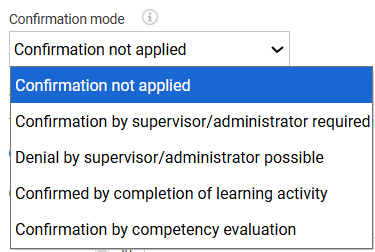
The confirmation type affects the self-assessment of skills achieved by staff members:
-
Confirmation not applied: The skill can be assessed by staff members. This assessment will not have any effects.
-
Confirmation by supervisor/administrator required: The level of achievement assessed by staff members will become the officially achieved status when confirmed by a supervisor or administrator.
-
Denial by supervisor/administrator possible: The skill will be directly displayed as "confirmed". This can then be changed or set to decline at a later date by the supervisor or administrator.
-
Confirmation by completing a learning activity: Self-assessment by the learner or confirmation by the supervisor/administrator is not possible. The skill can only be acquired by completing a learning activity.
-
Confirmation by competency evaluation: The skill level assessed by learners and supervisors based on the created competency statements is officially recognized once both parties confirm the competency evaluation results. The confirmation request occurs after both sides have submitted their self-evaluations, reached a consensus for each competency statement, and are required to approve or decline the skill level assignment. For details, please see here.
Notes
-
To increase the transparency for staff members, the same confirmation type should always be selected for all skills or skill groups
-
Skills can be self-assessed by the learner
Confirmation by Competency Evaluation
Confirmation by Competency Evaluation provides a structured, transparent workflow to assess, align, and confirm skill levels between learners and supervisors within job profiles, by introducing a structured 3‑step workflow:
-
Self‑Evaluation done by Learner and Supervisor
-
Consensus-Building filled out by the supervisor
-
Final Level Assignment Confirmation done by Learner and Supervisor
That blends learner self-assessment with supervisor validation to ensure accurate, fair, and auditable skill-level assignments within job profiles. The feature supports competency statements creation, a consensus-building option, a mutual confirmation process, and versioned records to facilitate development conversations, compliance, and alignment to career paths.
A Competency statement is a specific statement that defines what it means to perform a given skill level successfully. Competency statements break down each skill level into concrete criteria that can be assessed through self‑evaluation and supervisor evaluation. Competency statements are always tied to skill levels, not standalone elements.
E.g.
-
Skill: Negotiation
-
Skill Level: Advanced Negotiation
-
Competencies Statements:
-
Responds effectively to objections using structured reasoning.
-
Adapts negotiation style to stakeholder type.
-
Demonstrates active listening to uncover hidden interests.
-
User Interface Components
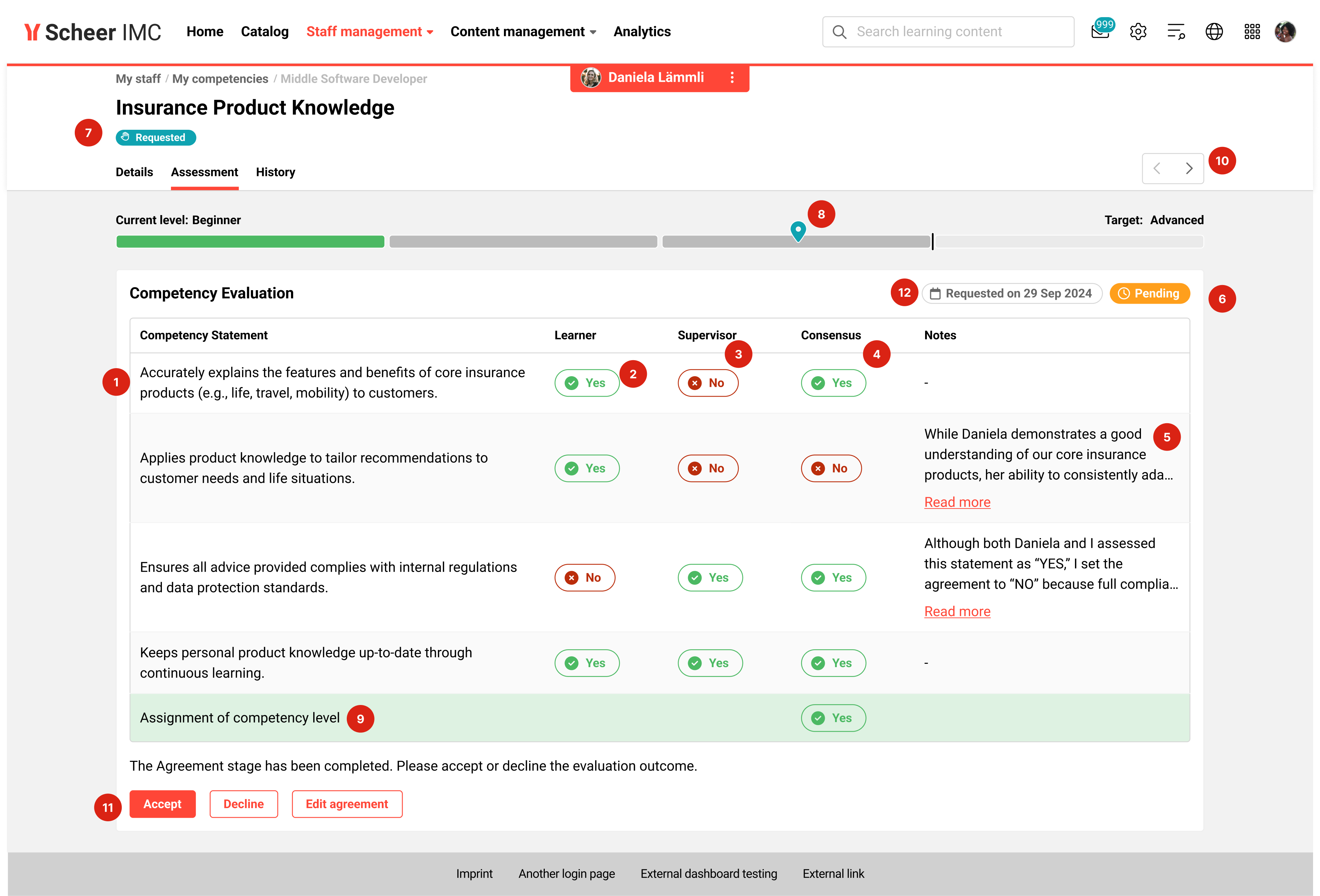
The confirmation by competency evaluation view includes the following UI components:
-
Competency Statements: a list of Competency Statements created in the skill scale tab, per skill.
-
Learner Self‑Evaluation: Yes/No per competency statement evaluation (learner-only access)
-
Supervisor Self‑Evaluation: Yes/No per statement (supervisor-only access)
-
Consensus-Building: Yes/No selection per statement (supervisor-only; enabled by default). Selection affects the outcome if the competency level is assigned as yes or no.
-
Notes: optional supervisor comments; helpful for discrepancies and documentation
-
Status: current state of the competency evaluation process
-
Assessment Status: overall status for the assessment instance
-
Skill Level: Evaluated skill-level
-
Assignment Outcome: positive/negative based on “Yes” threshold (green/red), configured within the skill
-
Navigation: quick movement between the skills
-
Confirmation: Learner and Supervisor confirmation, final approval/decline of the skill-level assignment
-
Status Date: date when the assessment was requested or started
Learner and Supervisor Workflow
Step 1: Self-Evaluation
The learner completes their assessment. Once all skill levels are self-evaluated, the manager receives an automatic notification to plan next steps, such as scheduling a meeting to review results.
The supervisor completes their evaluation of the learner. Saving the final submission starts the next step for each skill.
Step 2: Consensus-Building
The manager selects a Consensus for each Competency Statement, either individually or during a joint session. For each statement, the manager chooses “Yes” to confirm or “No” to decline.
These selections determine the common outcome for competency-level assignment, as shown below.
Step 3: Confirmation
Both the learner and the supervisor approve or decline the competency level outcome.
Three outcomes are possible, as described below.
-
If both confirm a positive outcome:
The result is locked and displayed with a confirmed Status. -
If both confirm a negative outcome:
A new version of the assessment is launched, restarting the process. The previous version remains visible for transparency but is locked and displayed with a declined Status. Learners and supervisors can see prior versions in read-only mode to reference past feedback and progress -
If one party declines: The competency evaluation version remains editable for further discussion, and consensus selections are cleared.
Changes within a skill are tracked and listed in the skill history tab.
Notes
-
If the learner finishes first or second, the additional columns (Consensus and Notes) are displayed, but greyed out.
-
If the supervisor finishes first or second, the additional columns (Consensus and Notes) are displayed.
-
Both columns become available only after the learner has entered a value in their Self-Evaluation. Otherwise, still greyed out.
-
-
Only skills with the same confirmation mode can be added to the same job profile.
-
Backend changes to competency statements (e.g., adding or removing statements) affect only new versions of evaluations; existing versions remain unchanged to ensure transparency.
-
Content (courses, learning paths) can support progress toward a skill level and is shown as a green‑gray bar, but it does not fulfill level requirements on its own.
Limitations
-
Automatic reminders or due dates for self-assessments are not supported.
-
Admin functionalities via the Staff Pool are not accessible in this workflow.
-
Changes to a user’s Competency History in the Staff Pool are not triggered.
-
Skill levels above the defined target level cannot be assessed.
-
A combination with accumulative skills is not supported.
-
Confirmation mode cannot be used for skills without a Job profile assignment.
Related Topics
SkillsSkill ScalesConfirmation by Competency Evaluation