
Kursvorlagen dienen dazu, die Erstellung von Kursen einfach und präzise zu gestalten, indem so viele allgemeine Einstellungen, Informationen und Inhalte wie möglich auf Vorlagenebene festgelegt und für Kurse, die aus der jeweiligen Vorlage abgeleitet werden, vordefiniert werden. Dies trägt zur Verbesserung der Konsistenz und Effizienz bei, wenn mehrere Kurse aus derselben Kursvorlage abgeleitet werden. Dadurch werden die Kurseinstellungen vereinheitlicht und die Erstellung vereinfacht.
Beim Erstellen einer Kursvorlage wird zunächst ein Kurstyp als Grundlage für die Vorlage ausgewählt. Die auf Kurstypebene definierten Einstellungen werden für die Vorlage vordefiniert. Es ist auch möglich, die meisten Einstellungen auf Kurs- und Vorlagenebene nicht anzugeben und stattdessen die Vervollständigung auf Kursniveau zu verlangen, aber normalerweise sind lediglich minimale Einstellungen oder Metatag-Werte für die Befüllung auf Kursniveau sinnvoll.
Grundsätzlich verfügen Kursvorlagen über dieselben Tabs wie Kurse, lediglich der Tab „Metatags und Attribute“ unterscheidet sich. Alle Metatag-Einstellungen sind in den Kursen einer Vorlage zu finden und können auf diesem Tab speziell in Bezug auf die Anzeige definiert werden. Die Verfügbarkeit der Tabs in Kursvorlagen und Kurstypen wird auf der Kurstypebene aktiviert.
Kursvorlagen können den Lernenden über den Katalog direkt zugänglich gemacht werden. In diesem Fall werden die Kurse über die Kursvorlage ausgewählt. Diese Auswahl ist sinnvoll, wenn sich die Beschreibungen der Kurse nur geringfügig (z. B. in Bezug auf Termine und Standorte) von denen der Kursvorlage unterscheiden.
Zum Zweck der Erhebungen zum Bedarf und zur Nachfrage nach Kursen können Teilnehmer und Administratoren Kursvorlagen vorab vormerken. Dabei können der bevorzugte Termin und Standort angegeben werden.
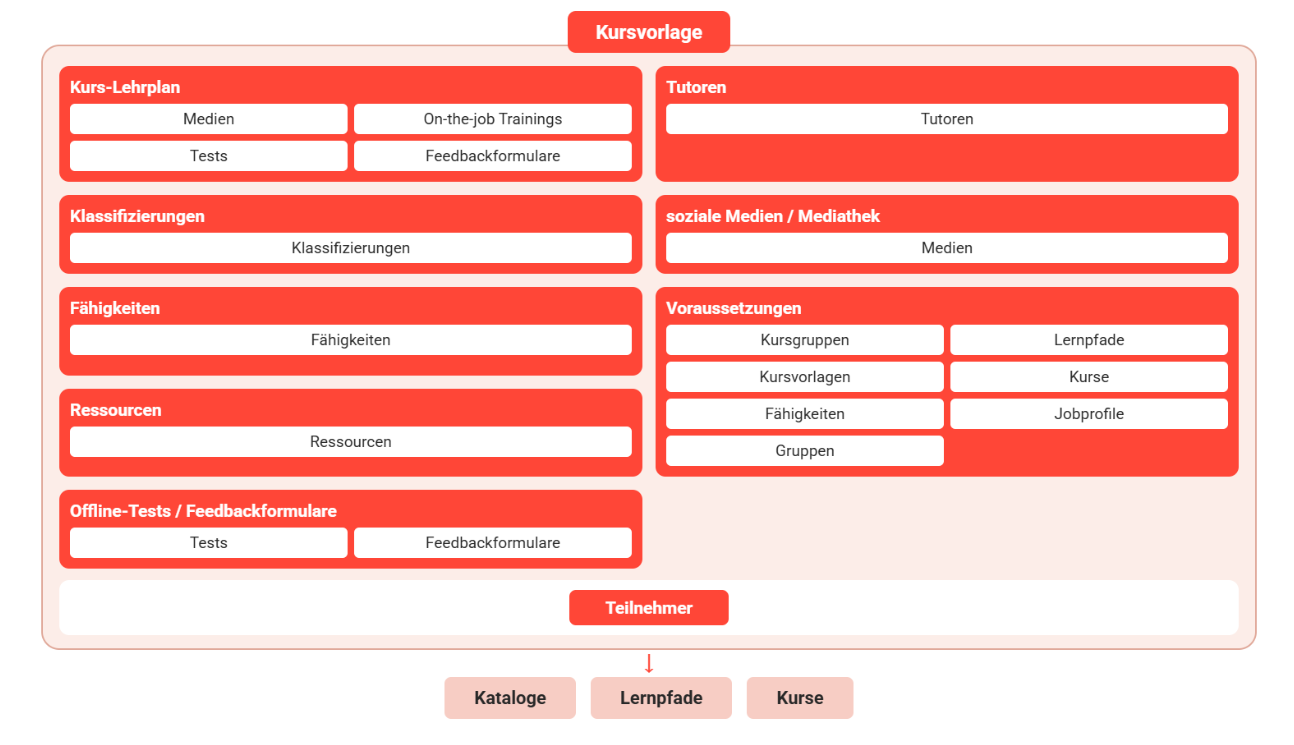
Funktionen der Kursvorlagenverwaltung
Neu
Welche Kursinformationen verwaltet werden sollen, wird über die Kurstypen festgelegt. Diese Information können bereits auf der Ebene der Kursvorlage vorgegeben werden. Zu diesem Zweck verfügt die Kursvorlage über dieselben Tabs wie der spätere Kurs. Es gibt einige Unterschiede zwischen Kursvorlagen und Kursen, die im Folgenden beschrieben werden.
Metatags und Attribute
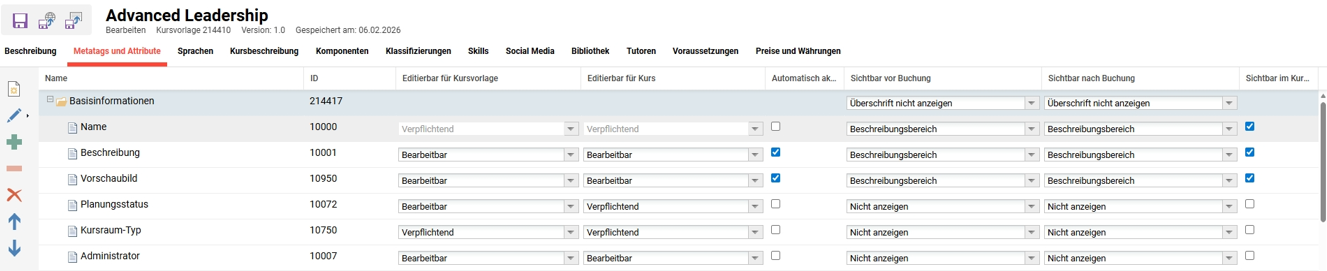
Es stehen eine Reihe von Standard-Metatags und -Attributen zur Verfügung. Je nach Anwendungsfall können zusätzliche Metatags hinzugefügt werden. Es können allgemeine Einstellungen zur späteren Verwendung von Metatags und Attributen für die Kursvorlagen und Kurse vorgenommen werden. Für jedes Metatag gibt es mehrere Einstellungsoptionen: editierbar für Kursvorlage, editierbar für Kurs, automatisch Aktualisieren, Sichtbarkeit vor/nach der Buchung und im Kursraum. Diese Einstellungen bestimmen, ob das Metatag sichtbar und bearbeitbar ist oder nicht.
Editibarbar für Kursvorlage
Es stehen vier Optionen zur Auswahl: „notwendig“, „bearbeitbar“, „nicht bearbeitbar“ und „nicht anzeigen“.
-
"Verpflichtend" bedeutet, dass das Metatag auf der Ebene der Kursvorlage unter der Registerkarte „Standardwerte“ ausgefüllt werden muss.
-
„Bearbeitbar“ bedeutet, dass alle Metatags auf der Registerkarte „Standardwerte“ angezeigt werden und Werte optional eingegeben werden können.
-
„Nicht bearbeitbar“ bedeutet, dass das Metatag sichtbar ist, aber nicht geändert werden kann.
-
"Nicht anzeigen" bedeutet, dass der Metatag überhaupt nicht angezeigt wird. Dies kann beispielsweise für technische Metatags nützlich sein, die nur dazu dienen, Werte im Hintergrund zu speichern.
Editierbar für Kurs
Es stehen vier Optionen zur Auswahl: „verpflichtend“, „bearbeitbar“, „nicht bearbeitbar“ und „nicht anzeigen“.
-
"Verpflichtend" bedeutet, dass das Metatag auf Kursniveau ausgefüllt werden muss.
-
„Bearbeitbar“ bedeutet, dass alle Metatags angezeigt werden und Werte optional eingegeben werden können.
-
„Nicht bearbeitbar“ bedeutet, dass das Metatag sichtbar ist, aber nicht geändert werden kann.
-
"Nicht anzeigen" bedeutet, dass der Metatag überhaupt nicht angezeigt wird. Dies kann beispielsweise für technische Metatags nützlich sein, die nur dazu dienen, Werte im Hintergrund zu speichern.
Automatisch aktualisieren
Diese Einstellung legt fest, ob das Metatag automatisch aktualisiert wird oder nicht.
Sichtbarkeit vor Buchung
Diese Einstellung legt fest, ob das Metatag einschließlich seines Werts für den Lerner vor der Buchung sichtbar ist.
Sichtbarkeit nach Buchung
Diese Einstellung legt fest, ob das Metatag einschließlich seines Werts für den Lerner nach der Buchung sichtbar ist.
Sichtbar im Kursraum
Diese Einstellung legt fest, ob das Metatag einschließlich seines Werts in den Informationen zum Lehrplan angezeigt wird.
Strukturierung der Kursbeschreibungsseite
Es ist außerdem möglich, die Ordner als Überschriften auf der Kursbeschreibungsseite zu verwenden, um die Informationen zu strukturieren. Diese Funktion steht auch für Lernpfade zur Verfügung.
Zur Strukturierung der Kursbeschreibungsseite stehen folgende Ordneroptionen zur Verfügung:
-
Titel nicht anzeigen
-
Als zusammengeklappte Ordner anzeigen
-
Als aufgeklappte Ordner anzeigen
Lernlogik
Lehrplan-Elemente können erstellt und strukturiert werden. Wenn es für jede Sprache der webbasierten Schulung separate WBT (SCORM)-Lerninhalte gibt, können diese Lerninhalte in einem Ordner zusammengefasst werden. Alle hinzugefügten Objekte sind unabhängig von ihrer Freigabe für die Lerner sichtbar. Die Definition der Lernlogik und des Zeitplans entspricht den Anforderungen auf Kurslevel. Es gelten Einschränkungen, da die Start- und Enddaten der späteren Kurse noch nicht bekannt sind, sodass nur eine relative Terminierung möglich sind (z. B. 5 Tage nach dem Start durch den Teilnehmer anstelle eines konkreten Datums). In Kursvorlagen gibt es die Möglichkeit, Lerninhaltstypen zuzuweisen oder Lerninhalte erstellen. Vor der Erstellung eines Kurses auf Basis dieser Vorlage wird dann automatisch eine Instanz des Medientyps erstellt. In der Kursvorlage erstellte Lerninhaltstypen können nur systemweit gespeichert werden. Kursspezifische Lerninhaltstypen sind nicht zulässig.
Ressourcen
Hier können Ressourcenkategorien und Ressourcen für die späteren Kurse ausgewählt und alle aus Kursen bekannten Einstellungen vorgenommen werden. Buchungen können nur für die späteren Kurse vorgenommen und spezifiziert werden. Aus diesem Grund sind keine Buchungsbestätigungen verfügbar. Daher wird anstelle einer Kalenderanzeige eine Tabellenansicht verwendet.
Preise und Währungen
Durch Aktivieren der Option „Preise und Währungen“ im Abschnitt „Prozesskomplexität“ wird eine Funktion zur Einrichtung unterschiedlicher Preise pro Gruppe und in verschiedenen Währungen als neues Tab auf dem Niveau „Kursvorlage“ und „Kurs“ verfügbar.
Die Grundlage für die Preis- und Währungsfunktion ist das Metatag „Externer Preis“, dessen Wert dem Standardpreis des Kurses entspricht. Je nach Gruppenzuordnung und dem Wert des persönlichen Attributs „Bevorzugte Währung“ des Nutzers kann der für den Nutzer geltende Preis variieren. Wenn der Nutzer mehreren Gruppen angehört, für die unterschiedliche Preise definiert wurden, profitiert er vom niedrigsten geltenden Preis.
Wenn kein Preis in der bevorzugten Währung des Nutzers definiert ist, wird der Preis in der Standardwährung angezeigt.
Duplizieren
Bearbeiten
Löschen
Freigaben
Administratoren können die Duplizierungsfunktion speziell für Kursvorlagen zulassen oder einschränken. Nur Nutzer, Gruppen oder Mandanten mit der Berechtigung „Duplizieren“ können diese Aktion ausführen.
Alle Kursvorlagen, für die zuvor Freigaben zum Bearbeiten konfiguriert wurden, haben standardmäßig das Recht zum Duplizieren ausgewählt.
Versionierung
Aufgaben verwalten
Verwandte Themen
Konfigurationsmanager – Kurs/Lernpfad
Metatags
Kurstypen Administration