
On-the-Job Trainings comprise of one or many Tasks for the staff member to complete. These can be directly assigned by a Supervisor / Administrator or be assigned as a component of a Course. Tasks themselves can vary in nature and be anything from completing a simple checklist-style task, spending time with a mentor, writing a detailed response, recording a video completing an activity, or uploading an assignment.
Directly assigned tasks are especially ideal for digitally recording, agreeing, and tracking basic performance plans or OKR goals as tasks can be tailored per staff member.
The section below will explain how a Supervisor is able to directly assign their staff On-the-Job Training.
Assigning On-the-job via My Staff
Supervisors are able to directly assign their staff On-the-Job Training via the "My Staff" menu available under the "Manager" role navigation. On-the-job Training can either be assigned to a single staff member or bulk to multiple.
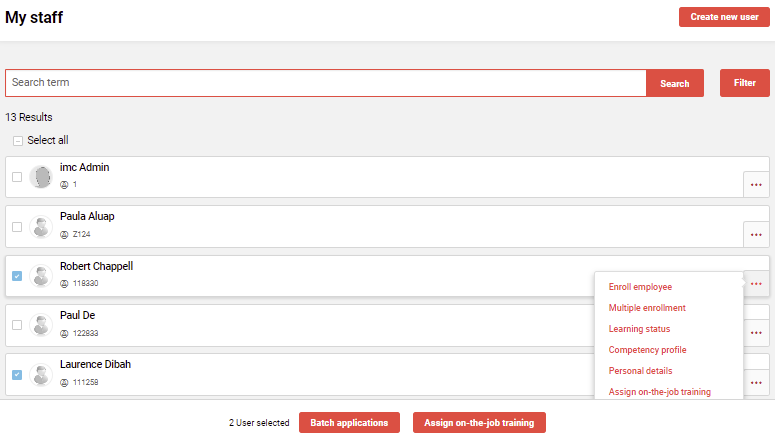
Assigning to a single staff member is possible via clicking the "..." button and selecting the "Assign on-the-job training" option.
Assigning to multiple staff is done by ticking the checkbox on desired staff and then clicking the "Assign on-the-job training" button at the bottom of the page.
The next step will be to select an On-the-Job Training template that will contain at least one pre-defined task that can be altered later. Simply click on the desired template to proceed.
In this example, the "2022 OKR" On-the-job Training will be assigned to Robert Chappell.

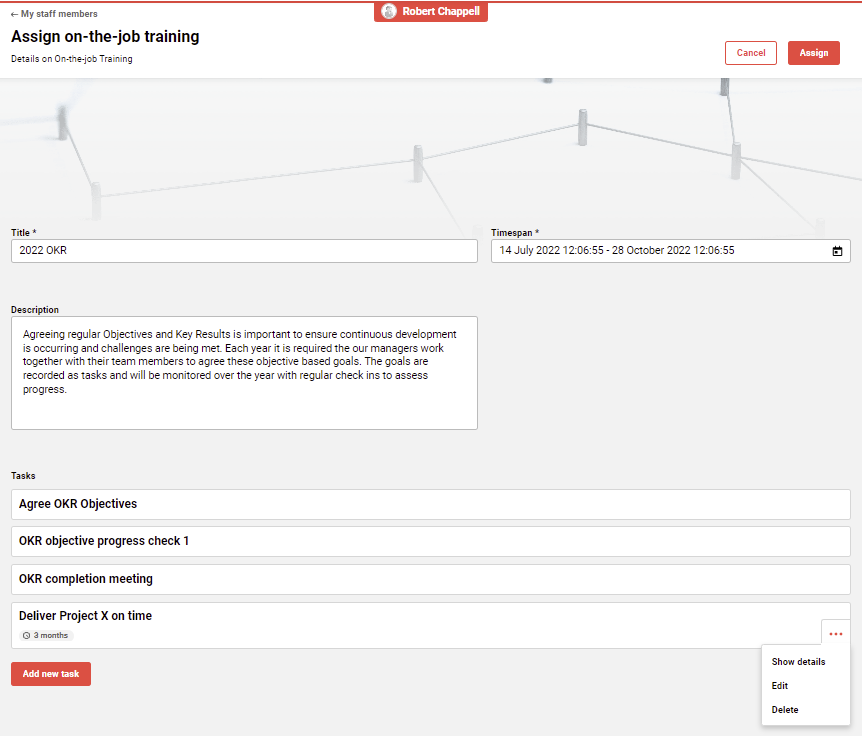
The On-the-Job Training template will be loaded with a pre-defined Title and Description that can be altered, but the pre-defined tasks can not be altered or removed. A time span for when the On-the-Job Training is to be completed must be populated. The "Add new task" button allows the Supervisor to create their own tasks for their staff member to complete.
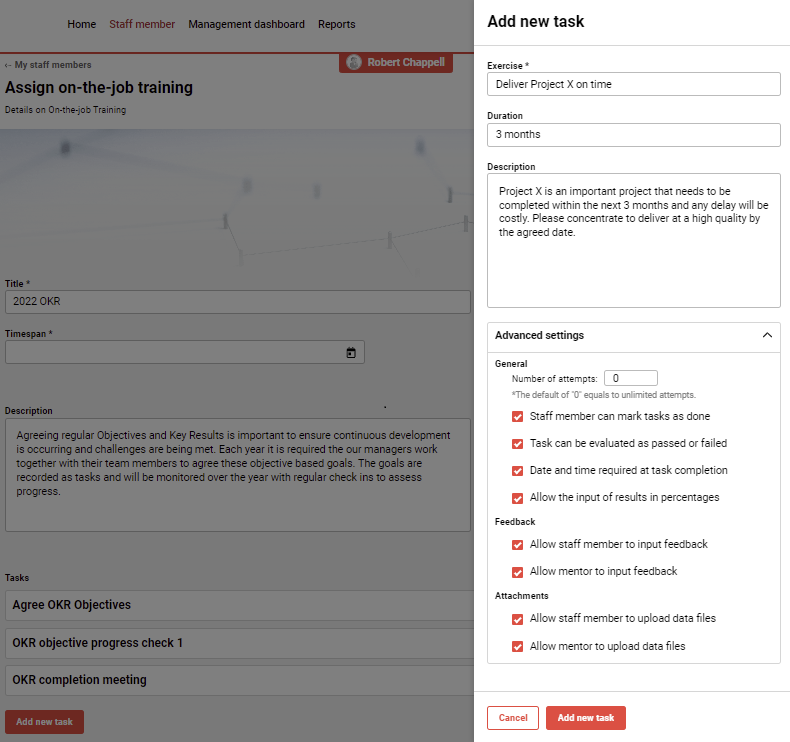
When adding new tasks a pop-up area will present on the right-hand side of the screen. Here name the task, set a duration, and describe what is required. The "Advanced settings" controls workflows on how the staff member and Supervisor interact with the task. Once the new task is completed click the "Add new task" button to save.
The "Advanced settings" are explained below:
-
Number of attempts - How many times staff can mark it as complete where 0 is unlimited.
-
Staff can mark tasks as done - Otherwise, the Supervisor has to mark them as done.
-
Tasks can be evaluated as passed or failed - If not active only completion matters.
-
Date and time required on completion - Enter a completion date when closing tasks.
-
Allow input of results in percentages - When detailed completion rating is needed.
-
Allow staff to input feedback - Enables staff to make comments to the Supervisor.
-
Allow mentor to input feedback - Enables Supervisor to comment to staff.
-
Allow staff to upload data files - Enables staff to upload supporting information in the task.
-
Allow mentor to upload data files - Enables Supervisor to upload supporting information in the task.
Newly added tasks will be visible and if required can be further edited or deleted. Once all details including the "Timespan" are set the final assignment step is to click the "Assign" button in the upper right-hand corner.
The On-the-Job Training has now been assigned to the staff member and a notification has likely been automatically sent. At this point, the Supervisor will automatically be taken to the detailed view of the staff member's On-the-job Training where updating or assessing of progress can already commence. This is ideal when directly discussing and agreeing on tasks with staff.
On-the-job Training Assignment via Staff Pool
HR managers have the possibility to assign On-the-Job training instances to employees via the Staff pool.

Bulk assignment is also available, with the possibility to specify different training dates for the different employees.
By selecting a mentor, the mentor will be assigned to all employees. When it is desired that the learner’s supervisor should be assigned as mentor automatically, the Mentor field will be left empty in the first step, and the system will then populate the corresponding supervisor automatically.
Monitoring On-the-job Trainings
The ongoing monitoring of On-the-Job Training task completions can be done in another function called “Mentored Training Overview" where all open tasks of staff are visible together. Notifications can additionally be used to notify the Supervisor or Mentor when the staff member has completed a task for assessment or made a comment.
Hints & Tips
-
On-the-Job Tasks are a licensed add-on function. If you do not see the "Assign on-the-job training" buttons check with your system administrators whether the function has been purchased or if the "Supervisor" group has been given Clearance to access the direct assignment feature.
-
There are multiple notifications triggered when On-the-Job Training is assigned or tasks have been updated including feedback comments. If none are received speak with your system administration team to ensure they have been activated.