
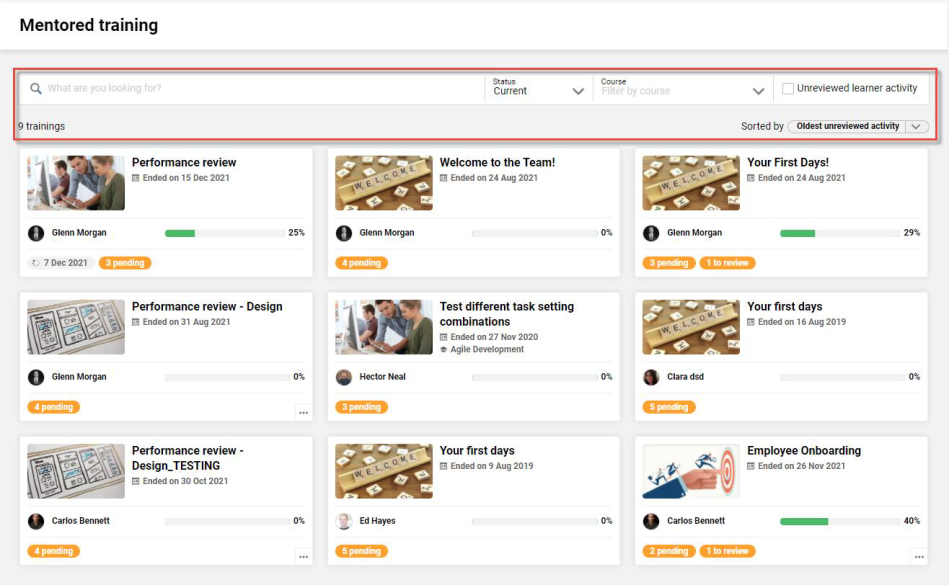
The "Mentored training" function is a dedicated Mentors or Assessors (Tutors) to view and assess all On-the-Job Training they are responsible for. On-the-Job Training modules are displayed in tiles that conveniently display important information such as user names/ group names and progress in an easy-to-interpret format. The standard Search field is based on the On-the-Job Training title as well as on the user’s first and last name. Further filter possibilities are available based on the status of the On-the-Job Training with a default focus on the current modules. Based on client configuration, it is additionally possible to activate an advanced filter and sort mode which allows easily locating On-the-Job Training modules where staff or students have already provided input that must be reviewed (name of the setting: Manual filter and sort options for mentors).
When the configuration is enabled, the mentors and assessors will have access to three additional filters including:
-
A "Course" filter allows Tutors to identify all the On-the-Job Training assigned as a result of course participation.
-
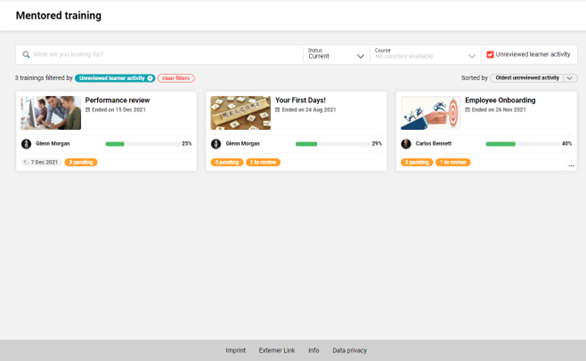
An "Unreviewed learner activity" filter locates On-the-Job Training containing Tasks where learners have provided feedback or an attachment that is yet to be followed up by the mentor or assessor.
-
A manual "Sorted by" option that allows one to order the modules based on the oldest or most recent input provided by learners.

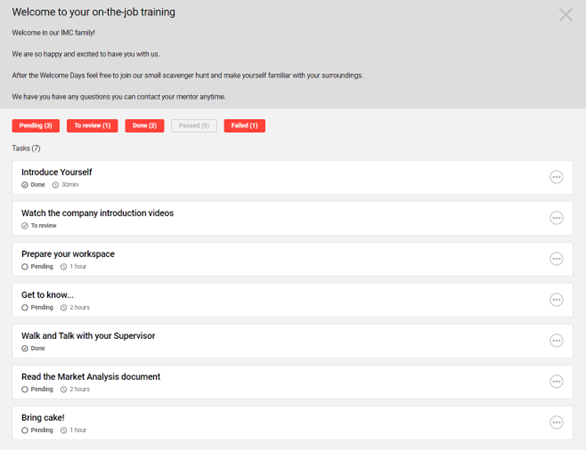
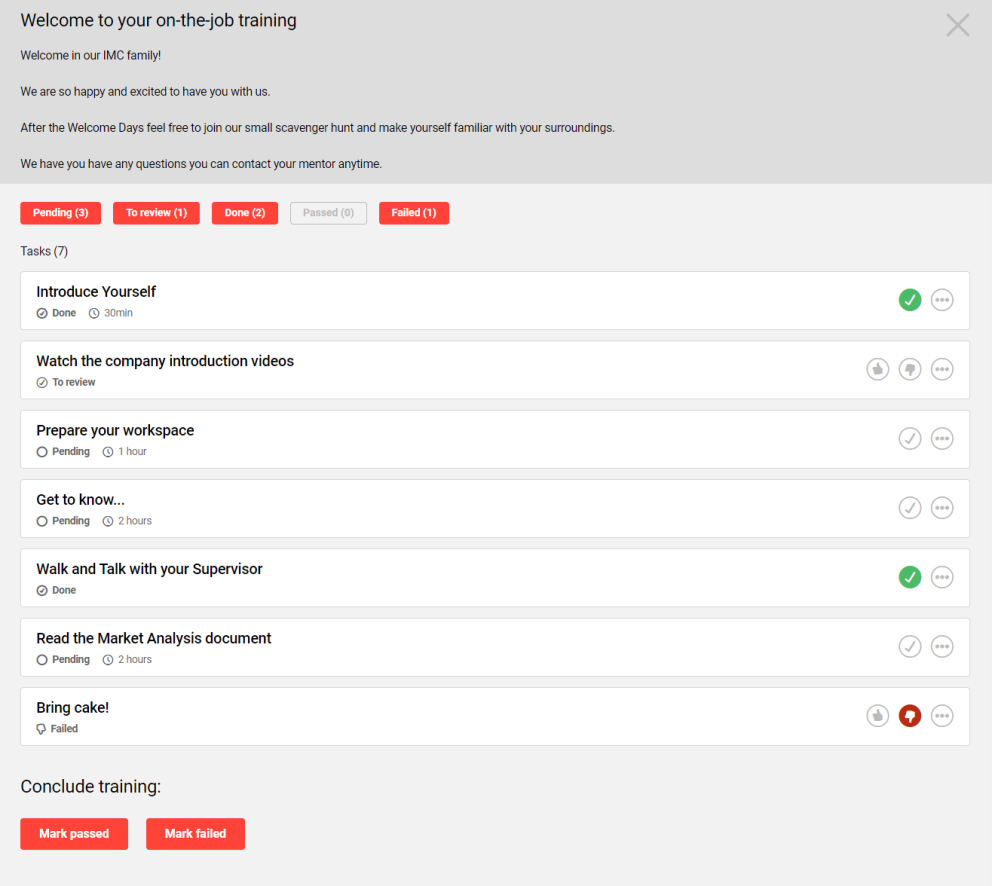
The mentor view of an individual OJT module is shown as in the screen below:
When evaluation is required, the mentor evaluates the task as “passed” or “failed”.

When evaluation is not required, the mentor marks the task as done.
Assessing an On-the-Job Training
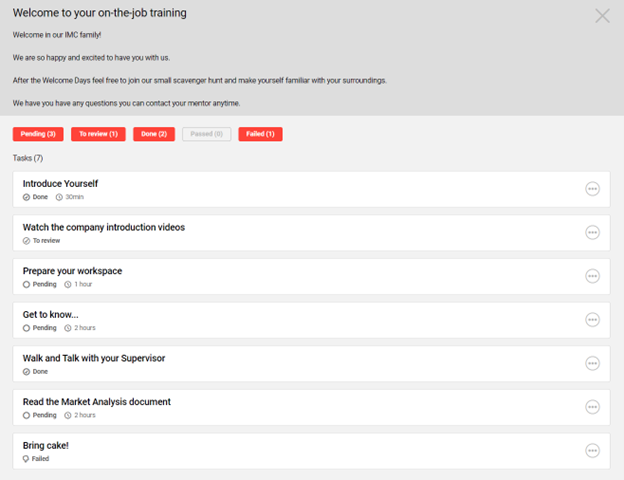
To commence assessing an On-the-Job Training click anywhere on the tile to open the detailed view. Here the On-the-Job Training description can be viewed along with each individual task which will be divided across five status-based tabs which are:
-
Pending: The task is yet to be started or submitted for assessment.
-
To review: The task has been started, marked as completed by the learner, and awaits assessment.
-
Done: The task has been marked as "Done" indicating satisfactory completion has occurred. Depending on settings this could be by the learner or mentor/assessor.
-
Passed: The task has been completed and deemed successful by the mentor or assessor.
-
Failed: The task has been completed and deemed unsatisfactory by the mentor or assessor.
On loading all tasks will be displayed in a minimised or collapsed view and the status can be seen on the lower left-hand side. Each task can be expanded by clicking the circle icon with the three dots where full details of the task requirement will be seen. Tasks that display a circle with a tick icon can be marked as "Done" and those with a thumbs up or thumbs down icon are to be marked "Passed" or "Failed".
Hints & Tips
In order to be set as a mentor for a directly assigned On-the-Job Training, the Supervisor must also be part of a group with a "Mentor" function.
Any group with the "Mentor" function selected will require navigation "Access Rights" to the "Mentored training" menu to mark tasks.
Assessing On-the-Job Training required by a course can also be done in the "Course Supervision" function.
For marking On-the-Job Training in a course where the participant is not expected to open the task or submit anything, the participant will require an "In progress" (started) enrolment status.