
Die Funktion „Kursbetreuung“ ist ein detailliertes Übersicht, in dem die Bewertung der Kursteilnehmer durch den Tutor erfolgt. Hier kann der Tutor den Kurs über Funktionen in drei Tabs, darunter „Teilnehmer“, „Lehrplan“ und „Social Media“, moderieren. Jeder der Tabs und ihre Unterfunktionen werden auf dieser Seite ausführlich behandelt. Nachfolgend ist eine kurze Zusammenfassung zu finden:
-
Teilnehmer: Zusammenfassung des Fortschritts aller Teilnehmer, Buchungsdaten einsehen, per E‑Mail mit Teilnehmern kommunizieren, den Fortschritt markieren, Zertifikate vergeben und Teilnehmerlisten exportieren.
-
Lehrplan: Aktualisierung des Lehrplans, Markierung des Fortschritts pro Lehrplankomponente, Generierung von QR-Codes für die Anwesenheit, Benotung von Tests, Bewertung von On-the-Job Trainings, Start von virtuellen Klassenzimmer-Meetings, Ansehen von Feedback und Erstellung von Reports.
-
Social Media: Moderieren von Foren, die dem Kurs zugewiesen sind.
Hinweis: Der Funktionsumfang, der einem Tutor in der Funktion „Kursbetreuung“ zur Verfügung steht, variiert je nach der zugewiesenen „Tutorrolle“ innerhalb des Tabs „Tutoren“ des Kurses.
Teilnehmer-Tab
Das Tab „Teilnehmer“ bietet Tutoren sofort einen Überblick über den Fortschritt jedes Teilnehmers, einschließlich seines Status und des Prozentsatzes der gewichteten Komponenten, die bereits erfolgreich abgeschlossen sind. Durch Klicken auf einen einzelnen Teilnehmerdatensatz werden weitere Informationen im Abschnitt „Details“ unten auf der Seite angezeigt, und der Teilnehmer kann über das kleine Icon „E-Mail senden“ direkt per E-Mail kontaktiert werden. Die fünf Icons in der Seitenleiste werden im Folgenden ausführlich beschrieben.
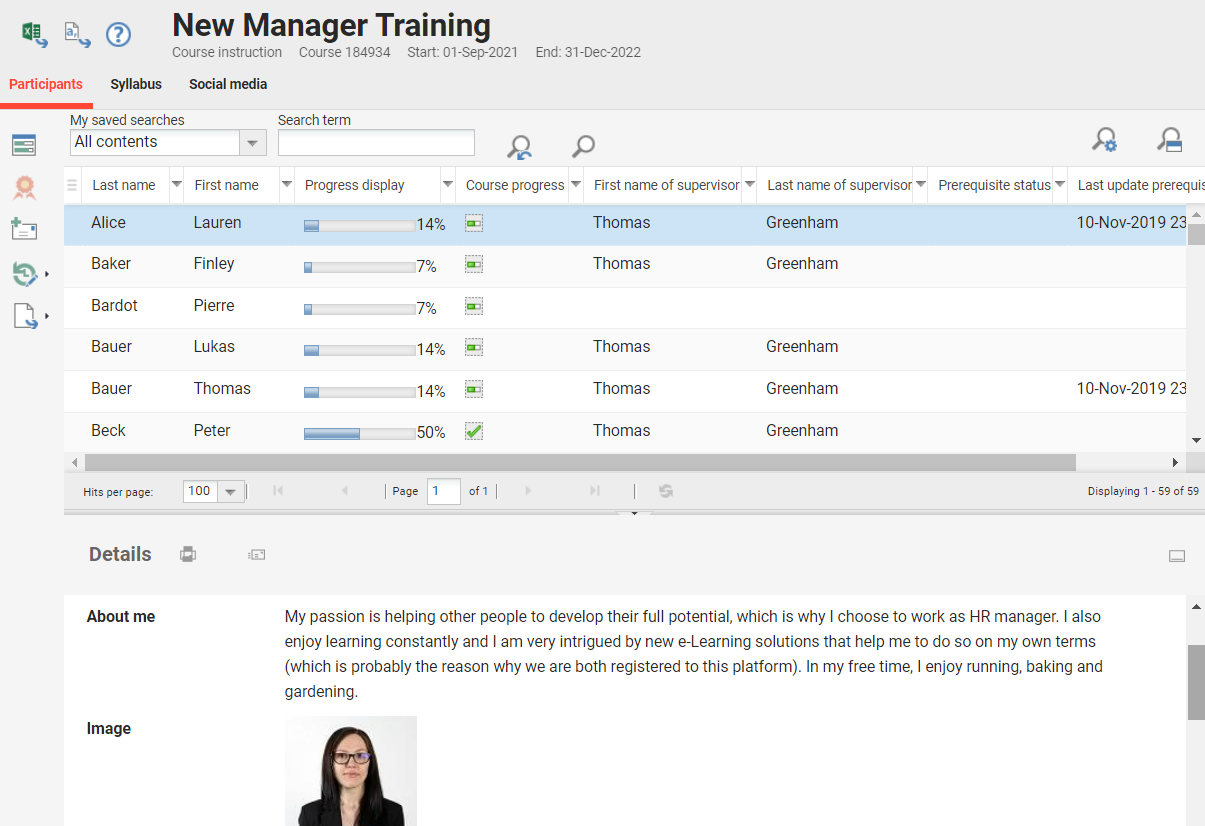
Kursfortschritt pro Teilnehmer
Die Funktion „Kursfortschritt pro Teilnehmer“ ruft die Übersicht über den Fortschritt der Kurskomponenten für den ausgewählten Teilnehmer auf. In dieser Übersicht stehen folgende Informationen und Funktionen zur Verfügung:
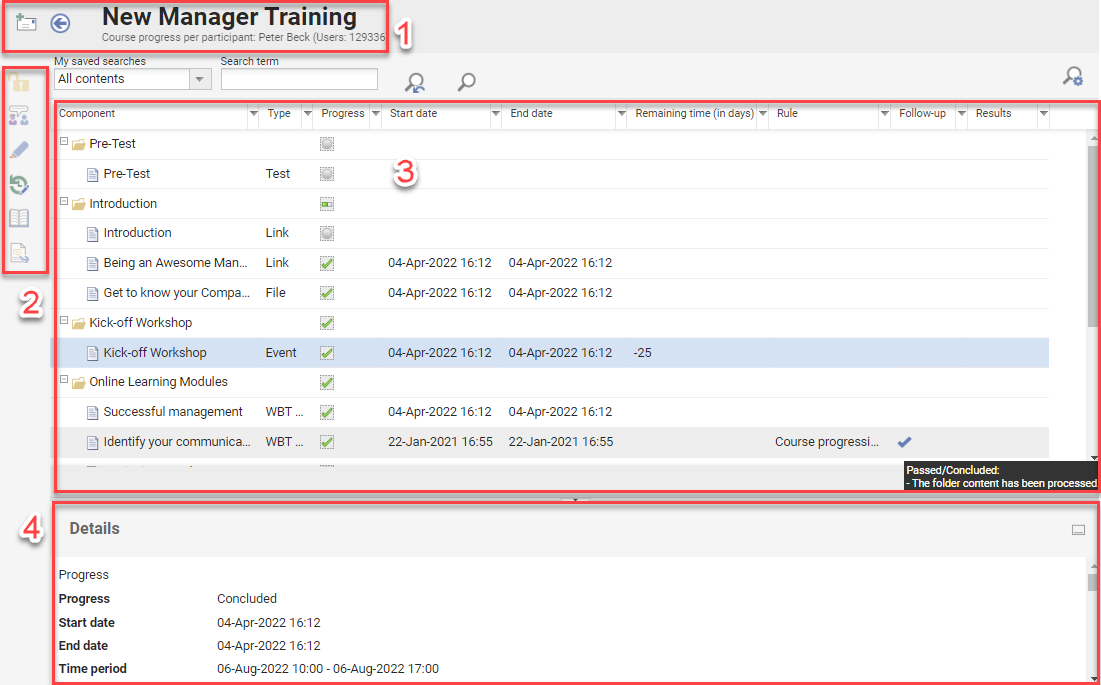
Kopfzeile (1)
Zeigt den Kursnamen, den Namen des Teilnehmers und Buttons zum „E-Mail senden“ oder zur Navigation zur vorherigen Seite („Zurück“) an. Da Änderungen automatisch gespeichert werden, gehen beim Klicken auf „Zurück“ keine Änderungen verloren.
Seitenleisten-Icons (2)
Hier findet man sechs Icons, mit denen der Tutor mit bestimmten Komponenten interagieren kann. Die Icons werden ausgegraut angezeigt und sind nur dann in voller Farbe sichtbar und anklickbar, wenn eine relevante Komponente markiert ist. Die einzelnen Icons werden im Folgenden erläutert:
-
Bearbeitung bestätigen: Beim Erstellen eines Kurses auf dem Tab „Komponente“ können Regeln der Lernlogik für Komponenten konfiguriert werden, darunter die Notwendigkeit einer Bestätigung durch den Tutor nach der Verarbeitung durch den Teilnehmer und die anzuwendenden Folgeaktionen. In der Regel bezieht sich dies auf die Freigabe einer Folgekomponente oder den Abschluss des Kurses. Die Bestätigung der Verarbeitung durch den Tutor erfolgt über den Button „Bearbeitung bestätigen“.
-
On-the-Joob Training betreuen: Hier können Tutoren, die für „On-the-job Training“ verantwortlich sind, die vom Teilnehmer als erfolgreich abgeschlossen markierten Aufgaben bewerten. Um Aufgaben zu bewerten, die noch nicht gestartet wurden, ist es notwendig, dass der Teilnehmer den Status „In Bearbeitung“ für den Kurs hat.
-
Freitextfrage zur Korrektur: Hier können Tutoren die vom Teilnehmer eingereichten Tests öffnen, um Freitextfragen zu benoten. Die Fragen verfügen in der Regel über eine Rubrik mit einer Musterlösung, die bei der Benotung hilft.
-
Bearbeitung des Lernfortschritt pro Komponente und Teilnehmer: Durch Klicken öffnet sich ein Pop-up-Fenster, in dem Tutoren den Status des Nutzers für die Komponente ändern, Start-/Enddaten eingeben und markieren können, wie der Abschluss bestätigt wurde (Tutor oder Nutzer).
-
Teilkurs-Übersicht: Durch Anklicken öffnet sich die Funktion „Kursbetreuung” des Teilkurses. Von hier aus gibt es keine Zurück-Schaltfläche, um zum Hauptkurs zurückzukehren.
-
Wirksamskeitskontrolle: Hier kann der Tutor in einem speziellen Feedback-Formular, der sogenannten „Wirksamskeitskontrolle“, seine Bewertung abgeben oder dem Teilnehmer Feedback geben. Diese Formulare dienen dazu, die Wirksamkeit des Trainings zu messen, indem die Bewertungen des Tutors, des Teilnehmers und des Vorgesetzten vor und nach dem Training miteinander verglichen werden.
Hauptbereich (3)
Der Hauptbereich zeigt den Kurs „Komponenten“ in strukturierten Ordnern an, die erweitert werden können, um die darin enthaltenen Komponenten anzuzeigen. Es gibt viele wichtige Spalten, darunter:
-
Komponente: Name der Medienkomponente.
-
Typ: Der „Medientyp“, aus dem die Komponente erstellt wurde.
-
Fortschritt: Der aktuelle Status des Teilnehmers; z. B. Nicht begonnen, In Bearbeitung, Beendet: Bestanden, Beendet: Nicht bestanden.
-
Startdatum: Das Datum, an dem der Teilnehmer die Komponente zum ersten Mal geöffnet hat.
-
Enddatum: Das Datum, an dem der Teilnehmer die Komponente beendet hat.
-
Letzter Aufruf: Datum, an dem der Teilnehmer die Komponente zuletzt geöffnet hat.
-
Aufrufe: Anzahl der Aufrufe des Teilnehmers auf ausgewählte Komponententypen (Test, WBT und OJT)
-
Restzeit (in Tagen): Zeigt an, wann der Teilnehmer eine unvollständige Komponente erfolgreich beenden muss, wenn eine Terminierung aktiv ist.
-
Punkte/Ergebnisse: Zeigt eine prozentuale Bewertung für Tests, WBTs mit Tests und OJTs an, die benotet werden.
-
Regel: Zeigt einen Kommentar an, wenn für die Komponente Lernlogikregeln konfiguriert sind.
-
Folgeaktion: Ein Häkchen zeigt an, dass es eine Lernlogikregel mit Folgeaktion gibt, und beim Darüberfahren mit der Maus wird die Aktion angezeigt, z. B. was als Nächstes passiert.
Details (4)
Zeigt die wichtigsten Details der Beschreibung einer Komponente an, die im Hauptbereich hervorgehoben ist.
-
Allgemeine Informationen wie die Anzahl der Anfragen für eine Komponente, Startdatum für den Lerner usw.
-
Lernlogik: Im Kursmanager kann für jede Komponente festgelegt werden, ob sie nach der Bearbeitung durch einen Tutor bestätigt werden soll und welche Folgeaktionen angewendet werden. In der Regel bezieht sich dies auf die Freigabe einer Folgekomponente oder den Kursabschluss. Das Vorhandensein einer Hierarchie und die durch einen Tutor ausgelöste Folgeaktion werden ebenfalls in Tabellenform angezeigt. Die Bestätigung der Bearbeitung und die Freigabe der Folgeaktion können über die Symbolleistenfunktion „Bearbeitung bestätigen” ausgeführt werden.
Zertifikat
Zertifikate für erfolgreichen Abschluss oder Teilnahmebescheinigungen können Kursen zugewiesen werden, die als PDF-Dateien heruntergeladen werden. Die Verteilung der Zertifikate kann im Kurs so eingestellt werden, dass sie entweder direkt nach erfolgreichem Abschluss für den Teilnehmer zum Herunterladen bereitstehen oder erst nach Vergabe durch den Tutor/Administrator verfügbar sind. Im letzteren Fall können Tutoren auf das Symbol „Zertifikat“ klicken, um ein Zertifikat für jeden Benutzer mit dem Status „Erfolgreich abgeschlossen“ auszudrucken.
E-Mail senden
Über das Icon „E-Mail senden“ kann der Tutor E-Mail-Nachrichten verfassen und an ausgewählte Teilnehmer senden. Es öffnet sich ein Pop-up-Fenster mit den E-Mail-Adressen der markierten Teilnehmer im Feld „Empfänger“. Nach Eingabe des Betreffs und des Textes kann der Tutor die E-Mail versenden. Bei einer Sammelauswahl wird die E-Mail an alle Teilnehmer gesendet. Weitere Einstellungen ermöglichen zusätzliche Optionen wie das Hinzufügen anderer Nutzer in CC, einschließlich aller anderen Tutoren, das Markieren als „Dringend“, das Hochladen von Anhängen und das Deaktivieren von Antworten.
Bearbeiten
Das Icon „Bearbeiten“ verfügt über drei Unteroptionen, um die Buchung und den Lernverlauf anzuzeigen.
Buchungshistorie
Greift auf ein Protokoll der Buchungshistorie des markierten Teilnehmers zu, um jede Änderung des Buchungsstatus mit Details wie Datum, Ereignis der Buchungsänderung und Art der letzten Aktualisierung anzuzeigen.
Buchungsdaten pro Teilnehmer bearbeiten
Öffnet ein Pop-up-Fenster, in dem alle Buchungsdaten des Teilnehmers angezeigt werden und verschiedene Änderungen an der Buchung vorgenommen werden können. Die Buchungsdaten können alle in Buchungsformularen erfassten Buchungsdaten und alle Anmerkungen zur Buchung umfassen. Zu den Änderungen, die ein Tutor vornehmen kann, gehören die Möglichkeit, den „Teilnehmerstatus“ zu ändern (z. B. von „Registriert“ zu „Bestanden“), „Fälligkeitsdaten“ festzulegen, „Startdaten“ und „Enddaten“ zu ändern sowie Preisangaben anzupassen.
Lernhistorie
Greift auf ein Protokoll des Lernfortschritts des markierten Teilnehmers zu, um alle bearbeiteten Komponenten und alle Statusänderungen anzuzeigen. Zu den Änderungsdetails gehören der Name der Komponente, die Statusänderung, das Datum der Änderung, wer die letzte Aktualisierung ausgelöst hat und bei Tests die Nummer der Zugriffe sowie das Ergebnis.
Exportieren (CSV)
Der „ERP-Export“ bietet dem Tutor zwei Optionen zum Exportieren der Liste der Kursteilnehmer, darunter:
-
Teilnehmer: Ein Standard-CSV-Dateiexport im Rohformat, der alle Details enthält, die auf dem Tab „Teilnehmer“ angezeigt werden.
-
Export basierend auf Vorlage: Dies sind fortgeschrittenere Vorlagen, die Seriendruck berücksichtigen, um Exporte der gewünschten Kurse und Teilnehmer in den bevorzugten Formaten zu ermöglichen, z. B. die Erstellung einer Vorlagenvorlage für Teilnehmerlisten in MS Word mit Seriendruckeinstellungen. Diese Vorlagen werden von Administratoren in der Funktion „Exportvorlagen” erstellt, und die Gruppe „Tutor” muss die Freigabe „Ausführen” erhalten, um die Vorlagen verwenden zu können.
Lehrplan-Tab
Die Registerkarte „Syllabus“ ist die detaillierteste Registerkarte in der Funktion „Kursbetreuung“ und fasst den Kursfortschritt pro Syllabus-Komponente für alle Teilnehmer zusammen. Hier werden alle Komponenten des Kurs-Lehrplans in ihrem strukturierten Format angezeigt, und Ordner können erweitert werden, um die Komponenten anzuzeigen. Wichtige Informationsspalten sind die Bearbeitungsrate, die Durchschnittspunktzahl aller Teilnehmer, die die Komponente abgeschlossen haben, sowie Daten und Regeln, die angeben, ob eine Lernlogik vorhanden ist. In dieser Ansicht können auch Ordner des Kurs-Lehrplans angezeigt werden, die als „Tutor-Ordner“ gekennzeichnet sind. Diese Ordner und die darin enthaltenen Komponenten sind nur für Tutoren sichtbar. Die Bearbeitungsrate gibt an, wie viele Lerner die Komponente beendet haben. Die Antwortrate gibt an, wie viele Lerner auf die Komponente zugegriffen haben.
Je nach „Tutor-Rolle“ und verwendeten Komponententypen stehen Tutoren in der Seitenleiste 13 Icons zur Verfügung, mit denen sie mit den Komponenten des Lehrplans interagieren können.
Fortschritt pro Teilnehmer
Öffnet einen neuen Tab, der einen Überblick über den Lernfortschritt aller Teilnehmer für die ausgewählte Komponente bietet. Darüber hinaus sind verschiedene Optionen für die Benotung von Komponenten wichtig, darunter Tests mit Freitextantworten oder On-the-job Trainings und Bearbeitungskomponenten mit Lernlogik, die eine Bestätigung durch den Tutor erfordern.
Ergebnisse zu Tests
Ermöglicht dem Tutor das Herunterladen von drei verschiedenen CSV-Reports, wobei zwei Reports die Gesamtergebnisse und einer die Ergebnisse pro Teilnehmer anzeigen. Um einen Report zu exportieren, muss ein Test markiert werden, woraufhin die Berichtsoptionen ausgewählt werden können. Die Reports umfassen:
-
Ohne Struktur: Enthält eine Zusammenfassung jeder Einreichung ohne Angaben zu den Teilnehmern.
-
Mit Struktur: Bietet einen Überblick in einer einzigen Zeile mit Anzahl der Versuche, Durchschnittswerten, Mittelwert und Abweichungen.
-
Testergebnisse und Kursstatus pro Lerner: Der Report enthält eine Zeile für jeden Teilnehmer des Kurses, unabhängig davon, ob der Test absolviert wurde oder nicht.
Ergebnisse zu Feedbacks
Ermöglicht dem Tutor den Zugriff auf drei verschiedene Ansichten der Ergebnisse des Feedback-Formulars. Um Berichte anzuzeigen, muss ein Feedback-Formular markiert werden, woraufhin die Berichtsoptionen ausgewählt werden können. Die Ergebnisse sind anonym, werden zufällig sortiert und es muss eine konfigurierbare Mindestanzahl an Rückmeldungen (normalerweise 3) eingereicht werden, um die Ergebnisse anonym abrufen zu können. Die Reports umfassen:
-
Feedback: Jedes anonyme Feedback-Formular kann einzeln im Feedback-Player angezeigt werden; mit den Pfeiltasten nach links und rechts lässt sich zwischen den Formularen wechseln. Ideal zum Anzeigen qualitativer Antworten in Freitextfragen.
-
Feedbackreport: Erstellt eine Übersicht des Feedback-Formulars mit den Gesamtergebnissen pro Frage, den Prozentsätzen pro Antwortoption und den herunterladbaren Kommentaren. Kann anschließend im CSV-Format heruntergeladen werden. In einem weiteren Schritt kann der Report auch exportiert werden.
Nützlich für: Kann anschließend im .csv-Format heruntergeladen werden
-
Fehlende Feedbacks: Ermöglicht den Export einer Teilnehmerliste, die das hervorgehobene Feedback noch nicht eingereicht haben.
Datum der Lösungsanzeige
Diese Einstellung gilt für den älteren, nicht responsiven Testplayer und ermöglicht die Eingabe eines Datums, zu dem die Lösungen der Testfragen für die Teilnehmer zugänglich sind.
Hinweis: Der moderne, responsive Universal Test & Feedback Player (UTFP) unterstützt diese Einstellung nicht.
Historie des Lernfortschritts pro Komponente
Zeigt ein Pop-up-Fenster mit einer Liste aller Teilnehmer an, wobei für jede Statusänderung eine Zeile angezeigt wird, die den neuen Status, das Datum der Änderung, die Version der Komponenten und die Art der letzten Aktualisierung enthält.
Vorschau
Die Vorschau: Mit dieser Option können Tutoren die Kursinhalte so anzeigen, wie sie einem Lerner angezeigt werden. Dieser Modus bildet die Lernerfahrung nach und hilft dem Tutor dabei, sicherzustellen, dass die Inhalte korrekt angezeigt werden und wie erwartet funktionieren.
Öffnen
Das Öffnen: Die Option gewährt Tutoren Zugriff auf den Kursinhalt, einschließlich spezieller Einstellungen und Konfigurationen, die für Lerner möglicherweise nicht sichtbar sind.
Teilkurs-Übersicht
Die Funktion ist nur verfügbar, wenn ein Kursset ausgewählt ist. Der Tutor kann alle Teilkurse eines Kurssets einsehen und erhält Informationen zur Anzahl der Nutzer, aufgeschlüsselt nach Status. Werden Teilkurse beispielsweise zur Anzeige der Anwesenheit im Unterricht verwendet, kann sich der Tutor schnell einen Überblick verschaffen, welche Unterrichtstermine stark nachgefragt sind und ob die angebotenen Plätze ausreichen. In der Symbolleiste steht dieselbe Funktion wie in der Kursübersicht zur Verfügung.
QR-Code generieren
Ermöglicht die Erstellung eines QR-Codes für eine „Veranstaltung“-Komponente, den die Teilnehmer beim Betreten des Klassenzimmers scannen und sich dann im LMS anmelden, um ihre Anwesenheit zu registrieren. Die „Veranstaltung“-Komponente wird häufig als kursspezifisches Medienelement auf dem Tab „Komponenten“ des Kurses erstellt.
Persönliche Zugangscodes per E-Mail versenden
Mit dieser Option kann der Tutor den Teilnehmern persönliche Zugangscodes für gesperrte Tests zuweisen, die vor dem Zugriff auf den Test eingegeben werden müssen. Auf diese Weise kann überprüft werden, ob die Person, die den Test absolviert, auch tatsächlich der Lerner im System ist. Ein Tutor könnte beispielsweise die PINs erst nach Überprüfung des Lernenden im Klassenzimmer aushändigen. Diese Option ist nur verfügbar, wenn der markierte Test mit aktivierter Zugangscode-Option erstellt wurde.
Proctoring Dashboard
Diese Option bezieht sich auf die Meazure Learning-Zusatzlizenz für die Prüfungsaufsicht und ermöglicht Tutoren die Anzeige eines Portals für Tests mit einem verknüpften Meazure Learning-Prüfungsaufsichtsanbieter.
Export der Teilnehmerliste pro Event
Diese Option ermöglicht den Export einer Teilnehmerliste für „Veranstaltung“-Komponenten und ist die Auswahl einer vorkonfigurierten Option notwendig.
OJT-Aufgabenprotokoll exportieren
Mit dieser Option können Tutoren On-the-job Training-Protokolle für Aufgaben exportieren, für die nur eine begrenzte Anzahl von Versuchen zur Verfügung steht.
Bibliothek und Social Media-Tabs
Diese Tabs werden nur angezeigt, wenn dem Kurs Komponenten zugewiesen sind, die den Tabs „Bibliothek“ und „Social Media“ zugeordnet sind.
Bibliothek
Der Tab unterstützt alle Medienkomponenten, wobei keine Verarbeitung oder kein Zugriff durch Teilnehmer berücksichtigt wird.
Social Media
Hier werden die Komponenten „Forum“ und „Virtuelles Klassenzimmer“ angezeigt. Bei Foren kann der Tutor, wenn er als „Moderator“ aufgeführt ist, das Forum überwachen und bei notwendigen Änderungen vornehmen. Bei virtuellen Klassenzimmern kann der Tutor Details anzeigen und darauf zugreifen, wenn ihm die Rolle des Gastgebers oder Moderators zugewiesen wurde.
Tipps & Tricks
Die „Fortschrittsanzeige“ wird auf der Grundlage der vom Teilnehmer absolvierten Kurskomponenten berechnet, wobei die „Gewichtung“ der Komponenten berücksichtigt wird, da einige Komponenten als wichtiger angesehen werden können als andere. Wenn beispielsweise die Gesamtgewichtung der Komponenten im Kurs 8 beträgt und Komponente 4 erfolgreich beendet wurde, würde dies 5/8 des Kursfortschritts ausmachen:
Komponente 1 → Gewichtung 1
Komponente 2 → Gewichtung 1
Komponente 3 → Gewichtung 1
Komponente 4 → Gewichtung 5
Um als „Moderator“ eines Forums ausgewählt werden zu können, ist es notwendig, einer Gruppe anzugehören, für die die Funktion „Moderator“ nominiert ist. Es kann sinnvoll sein, dies für die Standardgruppe „Tutor“ zu tun, indem man die Gruppe bearbeitet.
Für Informationen zu verschiedenen Zusatzmodulen wie Vitero, Meazure Learning, GoToMeeting, Adobe Connect und WebEx ist Kontakt zu einem Scheer imc-Kundenbetreuer aufzunehmen oder ein Support-Ticket einzureichen.