On-the-job Training comprises one or many tasks for the Learner to complete. These can be directly assigned by a Supervisor or administrator or be a component of a Course. Tasks can vary in nature, from completing a simple check sheet-style task to spending time with a mentor, writing a detailed response, recording a video, completing an activity, or uploading an assignment.
The section below will explain how to access On-the-Job Training.
The "On-the-job training" menu is where the Learner can access both forms of On-the-Job Training assignments. Those assigned to a Course can additionally be accessed within the Course itself. Three tabs are used to divide the On-the-Job Trainings according to their status: "Current" is not completed, "Pending" is awaiting assessment, and "Completed" is successfully processed.
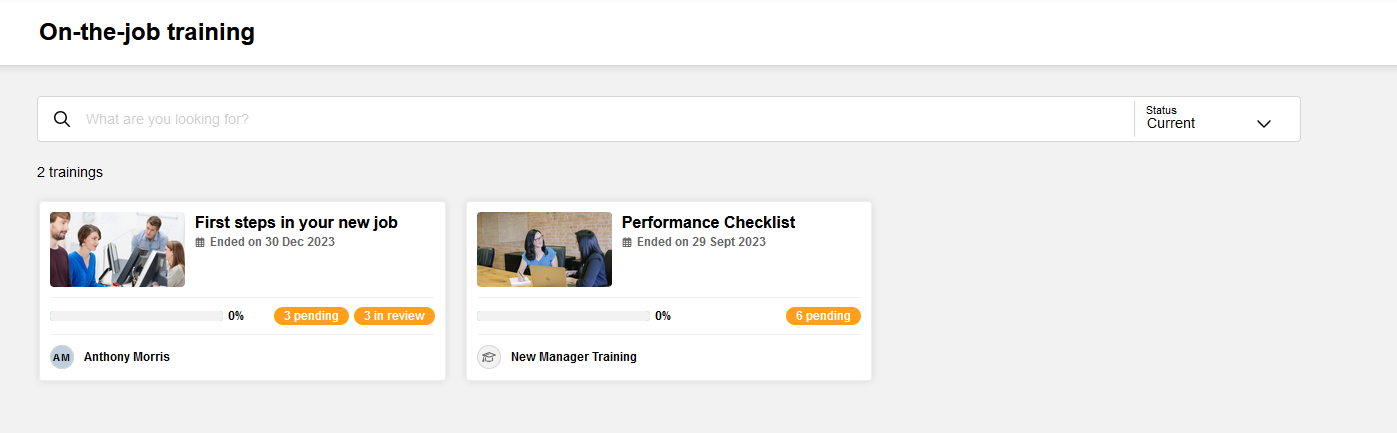
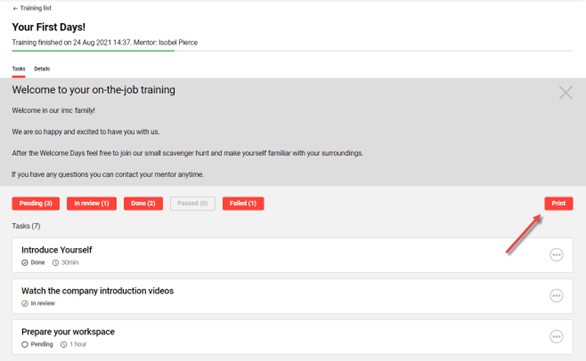
To open an On-the-Job Training, click on the tile, which will open the selected On-the-Job Training in an extended view. When opened the current status along with a due date (if there is one) is displayed at the top, followed by a description of the on-the-job training requirements, then buttons to filter the linked On-the-Job Training Tasks (Pending, In review, Passed, Failed) and at the bottom a list of all the linked/filtered tasks. Identifying how the On-the-Job Training was assigned is simple: a Mentor is listed for directly assigned or a Course name is displayed.
.png?cb=baaeb58f980ff21df1d7a9e20b6f59bd)
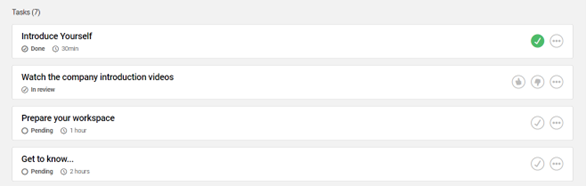
With the On-the-Job Training Tasks a green tick identifies the Tasks that are already completed and each Task can be expanded by clicking the circle icon with the three dots.
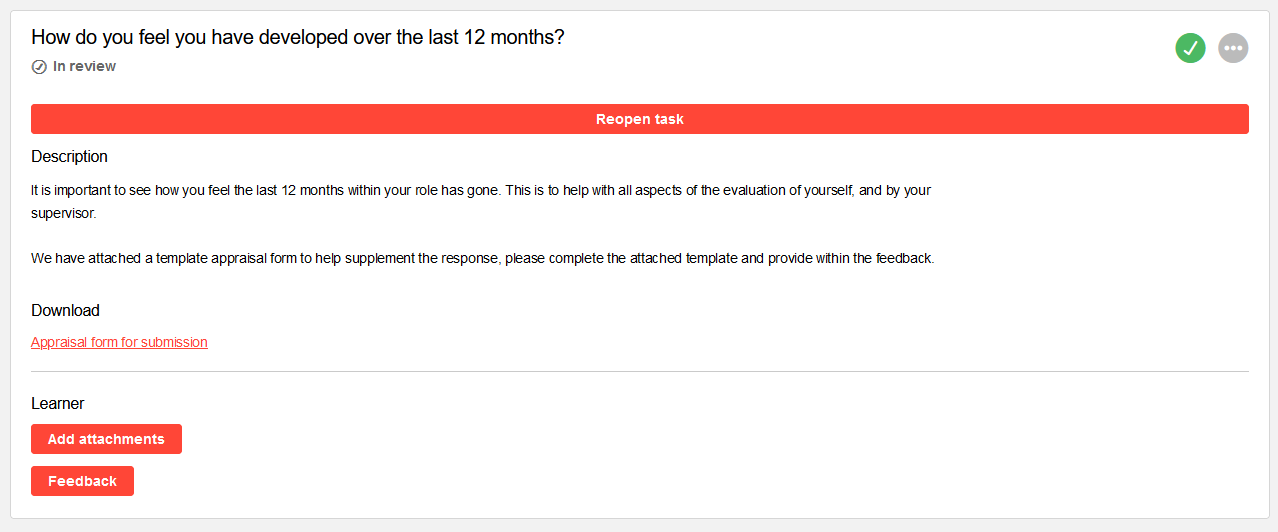
Once expanded each On-the-Job Training Task will provide a further explanation of what is needed to complete the Task. Depending on the Task there might be a document to download, evidence to upload via "Add attachments" button and/or comments via "Feedback" to complete the tasks.
When the requirements have been completed the "Mark done" button either completes the task or submits for review by the Mentor/Assessor. For Tasks "In review" requiring assessment it is possible for the Mentor or Assessor to provide further feedback and change the status back to "Pending" if they feel more work is needed to complete the task requirements. Some Tasks may also have limited attempts.
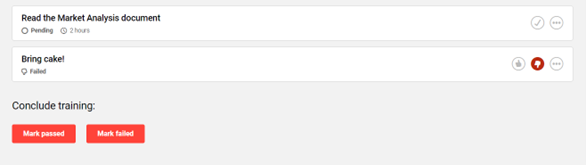
Once all Tasks have been satisfactorily completed the On-the-Job Training will be set to a concluded status. Some tasks may also be marked by the Mentor/Assessor as Passed or Failed and percentage graded.
Hints & Tips
If using a mobile or device or tablet the use of the camera is possible when performing an Upload. This is great for uploading live videos.
All tasks (if configured) allow to provide evidence in form of files and pictures/videos. If required, the mentor will review a task after it has been completed by the learner. The mentor can also evaluate a task as passed or failed.
Learner-driven: learners can conclude tasks themselves, i.e. Checklist
Evaluation required:
Step 1: Learners mark task as done
Step 2: Mentor evaluated as ‘’passed’’ or ‘’failed’’
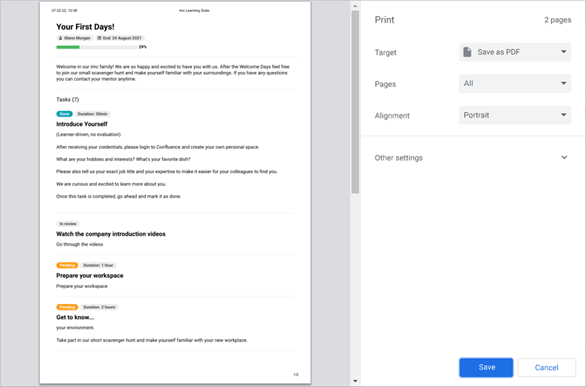
Learners have the possibility to access a print-ready version of the training which can be saved as a PDF document to serve as proof of achievement.