
Um mit der Einrichtung des Programms für das On‑the‑job‑Training (OJT) zu beginnen, sollten die folgenden Schritte befolgt werden, um die erforderlichen Aufgaben und Vorlagen zu konfigurieren. Dieser Vorgang umfasst das Erstellen einzelner OJT‑Aufgaben, deren Zusammenstellung zu Vorlagen sowie die Zuweisung der jeweiligen Aufgaben zu den einzelnen Vorlagen. Durch diese Konfigurationen wird sichergestellt, dass das Schulungsprogramm strukturiert und einheitlich ist und den Benutzern problemlos zugewiesen werden kann.
Konfiguration
Um die Einrichtung abzuschließen, sollten die folgenden Schritte befolgt werden:
1. OJT‑Aufgaben erstellen
Navigation:
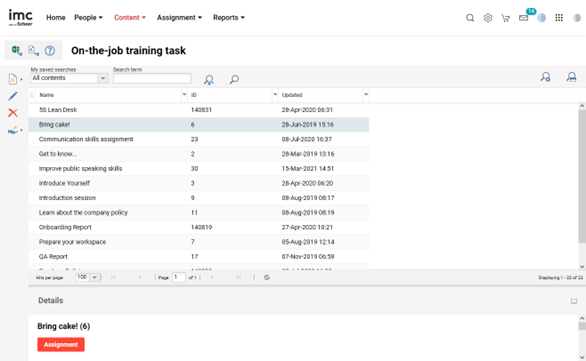
Inhalt → On‑the‑Job‑Training‑Aufgabe → Erstellen → Neu
Alle Pflichtfelder werden ausgefüllt und anschließend wird auf Speichern geklickt, damit die einzelnen Trainingsaufgaben erstellt werden können.
2. OJT‑Vorlage erstellen
Navigation:
Inhalt → On‑the‑Job‑Trainings‑Vorlage → Erstellen → Neu
Alle erforderlichen Informationen werden eingegeben und durch Klicken auf Speichern wird eine Vorlage erstellt, in der die Aufgaben erfasst werden können.
3. Aufgaben einer Vorlage zuweisen
Navigation:
Inhalt → On‑the‑Job‑Trainings‑Vorlage → Registerkarte „Inhalt“ → Hinzufügen
Die gewünschten Aufgaben werden aus der Liste ausgewählt und durch Klicken auf Speichern werden sie der Vorlage hinzugefügt.
Die Funktion ‚Gruppenarbeit‘ in OJT ermöglicht es, Schulungsaufgaben nicht einzeln, sondern in Gruppen zu bearbeiten. Durch das Aktivieren der Option ‚Gruppenarbeit‘ in der OJT‑Vorlage sowie durch die Konfiguration der Gruppeneinstellungen innerhalb der Kurskomponente wird mehreren Teilnehmenden ermöglicht, gemeinsam an den zugewiesenen Aufgaben zu arbeiten.
-
OJT für Gruppenarbeit erstellen
Navigation:
Inhalt → On‑the‑Job‑Trainings‑Vorlage → Kontrollkästchen „Gruppenarbeit aktivieren“ → Speichern
Die Option „Gruppenarbeit aktivieren“ wird ausgewählt und die Vorlage wird gespeichert.
Weitere Konfiguration:
Kurs → Bearbeiten → Komponenten → Gruppenarbeit → Bearbeiten → Registerkarte „Gruppe“ → Speichern
Die Gruppeneinstellungen innerhalb der Kurskomponente werden konfiguriert und gespeichert.
Ergebnis:
Dadurch wird es möglich, die Vorlage in einer kollaborativen Gruppenschulung zu verwenden, sodass mehrere Teilnehmende gemeinsam an den Aufgaben arbeiten können.
On-the-job Training als Bestandteil des Lehrplans
OJT-Vorlage dem Kurslehrplan zuweisen
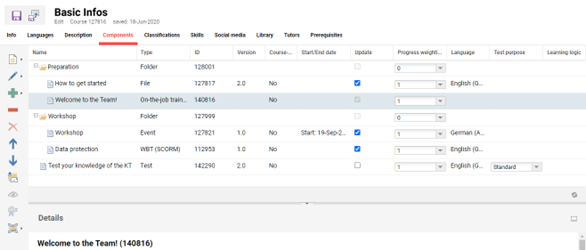
Inhalt → Kurse → Kurs bearbeiten → Registerkarte „Komponenten“ → Hinzufügen → OJT auswählen
Verwandte Themen