
ID=171
Über das Katalog-Panel können Kurse in einem Katalog abgefragt und die Ergebnisse auf einem Portal angezeigt werden.
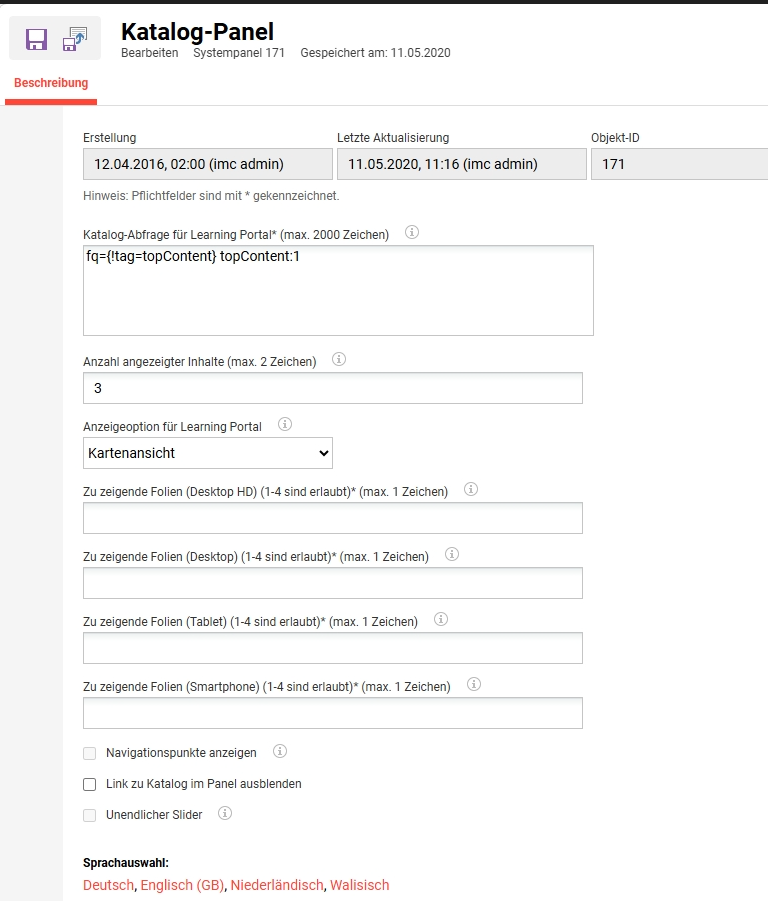
Panel-Einstellungen
Katalogsuche für das Lernportal
Durch die Vordefinition einer Katalog-Suchabfrage lässt sich festlegen, welche Inhalte im Panel des Lernportals angezeigt werden sollen. So ist es beispielsweise möglich, nur Inhalte mit einer bestimmten Lernform anzuzeigen. Durch die Konfiguration einer Katalogsuche in ILP kann ein Teil der generierten URL als Suchabfrage übernommen werden. Es können alle Arten von Filterkombinationen verwendet werden.
Beispiel:
Das Panel sollte kostenlose Online-Kurse anzeigen, für die sich der Lernende nicht registriert hat.
Im Katalog wird in die Lernansicht gewechselt und die Suche festgelegt.
-
Die Schnellfilter „Nicht eingeschrieben“, „Kostenlos“ werden aktiviert.
-
Lernform „Online“
Die Suche wird durchgeführt. In der Adressleiste des Browsers wird beispielsweise ein Link wie der folgende angezeigt: https://achievemore.imc-ms-deployment.imc-cs.com/ilp/pages/catalogsearch.jsf?catalogId=1700,122832&menuId=1108&locale=en-*:*&rows=10&fq={!tag%3DnotBooked} notBooked:1&fq={!tag%3DexternalPriceAmount} GB&showbundlekeys=false&mandant=clients&sidebarExpanded=true&q={!q.op%3DAND} externalPriceAmount:(0)&fq={!tag%3DlearningFormId} learningFormId:(113)
Der Teil der URL, der mit dem ersten „fq=...” beginnt, wird übernommen. In diesem Beispiel fq={!tag%3DnotBooked} notBooked:1&fq={!tag%3DexternalPriceAmount} externalPriceAmount:(0)&fq={!tag%3DlearningFormId} learningFormId:(113)
Dieser Ausschnitt kann bei der Suche im Katalog in das Feld „Lernportal“ eingegeben werden.
Panel – Lernpfad | Anzahl der angezeigten Inhalte
Anzahl der angezeigten Inhalte
Mit dieser Option kann festgelegt werden, wie viele Inhalte im Panel angezeigt werden sollen. Sind weitere Inhalte verfügbar, wird ein Link zu allen Inhalten (z. B. allen aktuellen Kursen) angezeigt. Ist das Feld leer, werden alle verfügbaren Inhalte angezeigt.
Die Anzeige der Inhalte in der Karussellansicht bietet zusätzliche Konfigurationsmöglichkeiten für die Panel-Inhalte, um verschiedene Ansichten im Lernportal anzuzeigen.
Anhand der Bildschirmtypen können bis zu vier Kacheln für die im Lernportal anzuzeigenden Inhalte und maximal einen Charakter pro Abschnitt konfiguriert werden. Es gibt vier Bildschirmtypen: Desktop HD, Desktop, Tablet und Smartphone.
Darüber hinaus bietet die Inhaltsanzeige im Karussell-Modus zwei weitere Optionen, die je nach bevorzugter Darstellungsweise ausgewählt werden können: „Navigationspunkte anzeigen“ und „Unendlicher Schieberegler“.
Bei Lernpfaden ist diese Option nur verfügbar, wenn im Panel inhaltsgesteuerte Pfade verwendet werden. Bei stufenbasierten Lernpfaden wird nur eine einzige Darstellungsart unterstützt, daher wird diese Einstellung als deaktiviert angezeigt.
Panel – Kurse | Anzeigeoption: ILP-Kurse
Anzeigeoptionen für das Lernportal
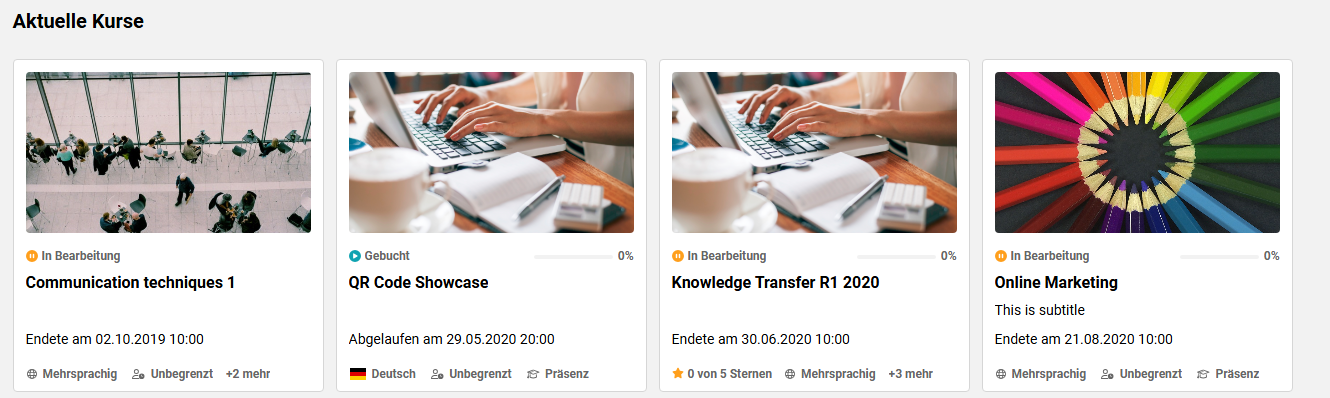
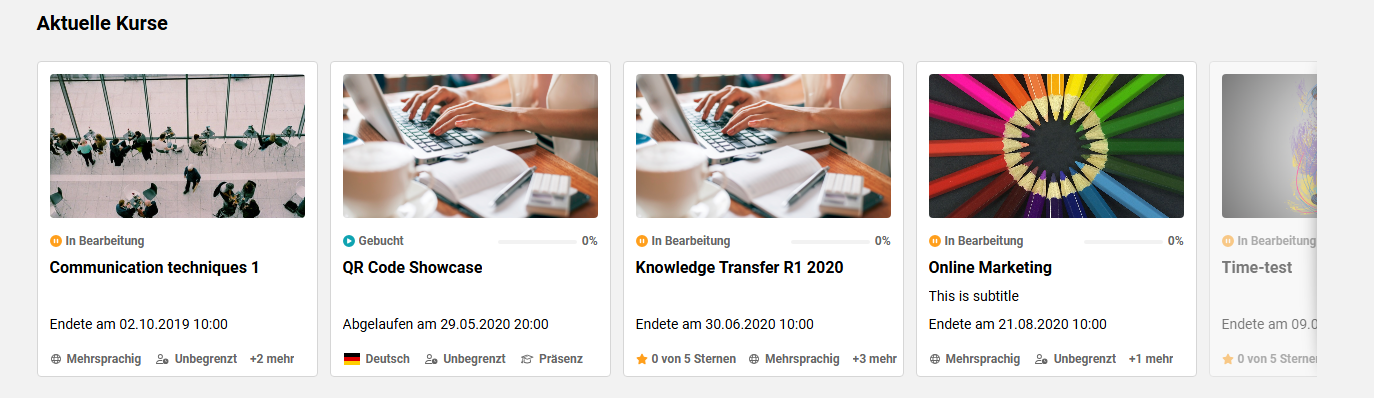
Die Inhalte des Panels können im Lernportal in verschiedenen Ansichten dargestellt werden. Hierfür stehen mehrere Optionen zur Verfügung. Es kann entweder die Kartenansicht oder die Listenansicht verwendet werden. Alternativ besteht die Möglichkeit, einen Schieberegler anzuzeigen, bei dem entweder eine oder mehrere Kacheln im Fokus stehen, während andere Kacheln über Buttons oder durch Wischen auf einem Touchscreen gesteuert werden können.
Listenansicht:

Karussell mit einer Kachel im Fokus:

Karussell mit mehreren Kacheln im Fokus:
-20260422-074923.jpeg?cb=e611f4b70ea73a8306ebdb2237e3d897)
Kartenansicht:
Karussellansicht:
|
Einstellung |
Was bewirkt diese Einstellung |
|---|---|
|
Zu zeigende Folien (Desktop HD) (1-4 sind erlaubt) (max. 1 Zeichen) |
Definiert die Anzahl der Kacheln, die in einer Desktop-HD-Ansicht (zwischen 1024px - 1280px) sichtbar sind, wenn der Layout-Typ Karussell-Ansicht verwendet wird. Für eine optimale Anzeige können Sie maximal 4 Kacheln angeben. |
|
Zu zeigende Folien (Desktop) (1-4 sind erlaubt) (max. 1 Zeichen) |
Definiert die Anzahl der Kacheln, die in einem Desktop (zwischen 800px - 1024px) sichtbar sind, wenn der Layout-Typ Karussell-Ansicht verwendet wird. Für eine optimale Anzeige können Sie maximal 4 Kacheln angeben. |
|
Zu zeigende Folien (Tablet) (1-4 sind erlaubt) (max. 1 Zeichen) |
Legt die Anzahl der Kacheln fest, die auf dem Tablet sichtbar sind (zwischen 500px und 800px), wenn der Layouttyp Karussellansicht verwendet wird. Für eine optimale Anzeige können Sie maximal 4 Kacheln angeben. |
|
Zu zeigende Folien (Smartphone) (1-4 sind erlaubt) (max. 1 Zeichen) |
Definiert die Anzahl der Kacheln, die auf Smartphones (unter 500px) sichtbar sind, wenn der Layouttyp Karussellansicht verwendet wird. Für eine optimale Anzeige können Sie maximal 4 Kacheln angeben. |
|
Navigationspunkte anzeigen |
Ermöglicht die Anzeige der Navigationspunkte unterhalb des Bedienfelds, wenn der Layouttyp Karussell verwendet wird. |
|
Link zu Katalog im Panel ausblenden |
|
|
Unendlicher Slider |
Zeigt eine pfeilbasierte Navigation am oberen Rand des Karussells an. Die Navigation ist fortlaufend und beginnt wieder am Anfang, wenn das Ende der Liste erreicht ist. |
Verwandte Funktionen
Konfigurationsmanager – Buchung | Registrierungs-Identifikatoren
Katalogmanager
Panels
Portal-Verwaltung