
Batch enrolment, move and replace enables the supervisor to handle the enrolments of their employees. As the functionality relies on the Default menu: My staff/ Staff Pool which displays the employees either on direct supervisor relationship, BU setup or ACLs this can also be used by administrator or HR people. The supervisor can either enrol several people at once into course or learning paths, move an employee from one course to another or replace the one employee who is enrolled in a course by another employee.
Enrolment via My Staff
The supervisor can enroll individual users in courses or learning paths. To do this, they select the learner for whom they want to perform the action. The points are located at the end of the learner tile. Clicking on them opens a menu that contains additional functions. To enroll a user in a course, select the “Enroll employee” option.

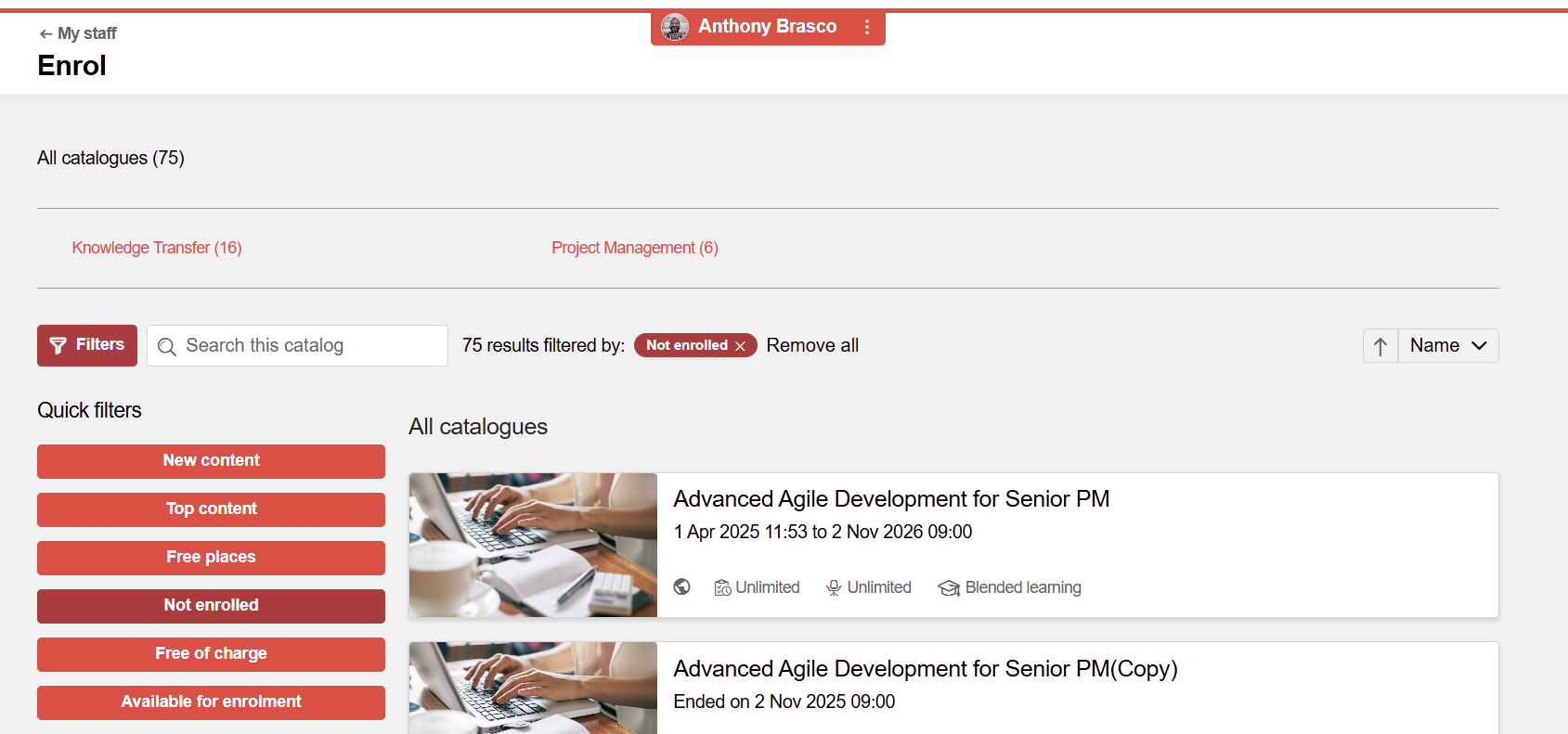
The catalog view opens in the user context, and the supervisor can now select the course or learning path in the catalogue for which the user is to be enroled.
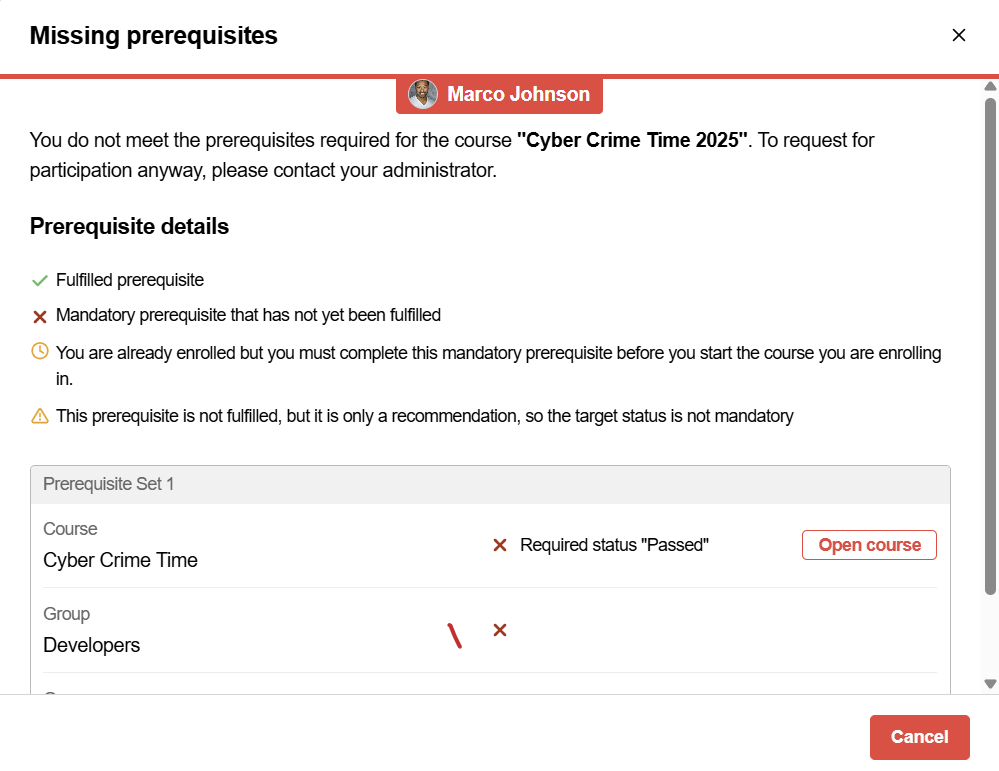
If the user doesnt meet the prerequisites the enrolment can not be finalised.
Enrolment via Catalogue by Supervisor
The page displayed after choosing the Enroll employee option from a course or learning path accessed via the catalogue now allows the possibility to select multiple users at the same time.
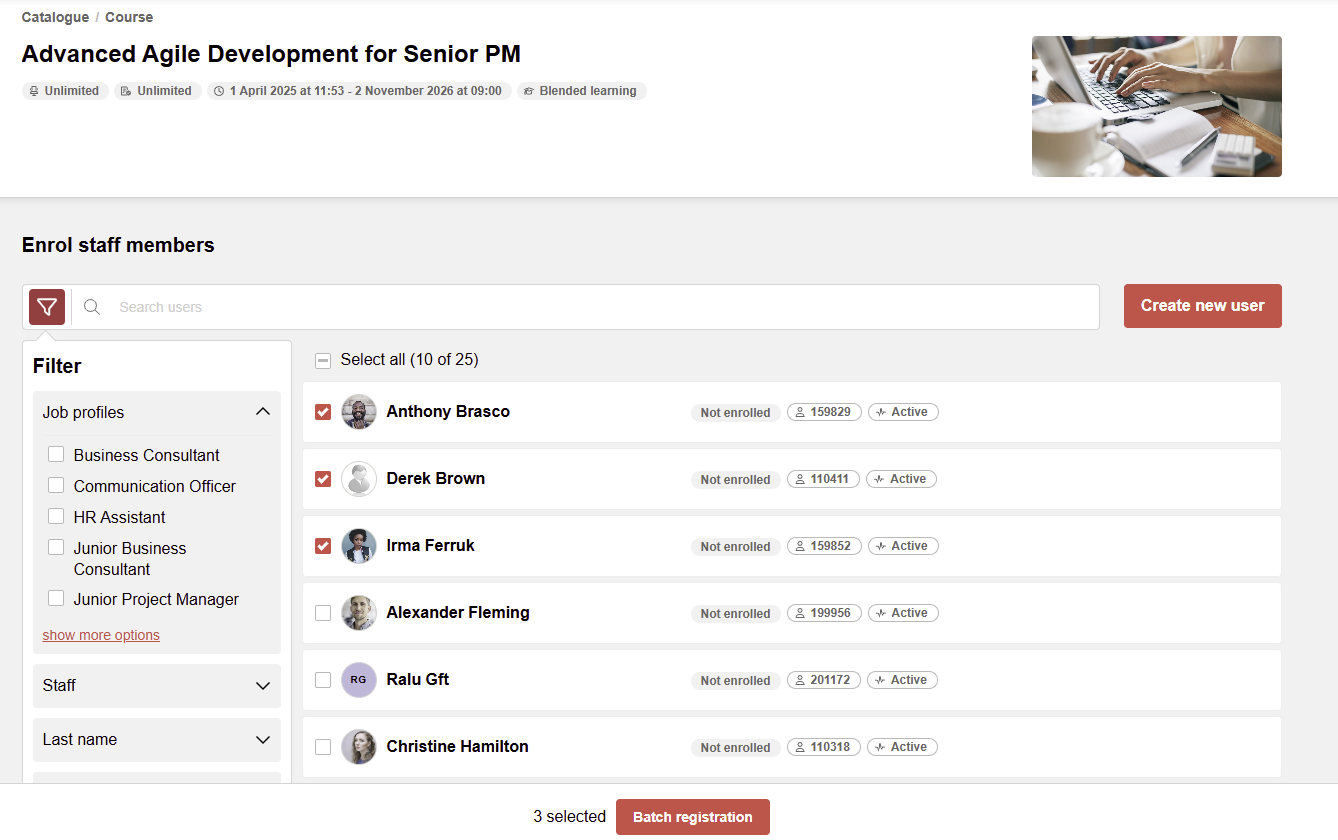
When doing multi selection, an action bar is displayed at the bottom of the page, allowing multi enrolment of the selected users
For courses where an enrolment form is defined, there is a limitation that only a single user at a time can be enroled.
While the enrolment the supervisor can define a common due date for the users as well as a indentification meaning if the course is mandatory or optional.
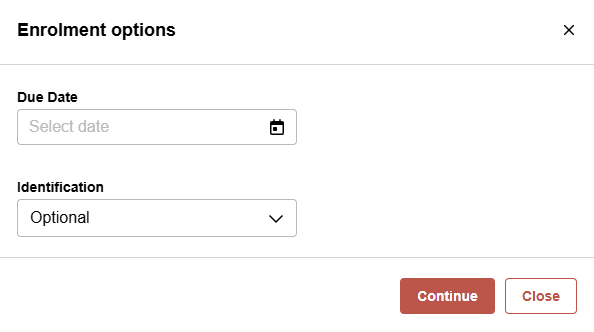
The enrollments are processed one by one. If there are not met pre-requisites or enrollment forms available, the enrollment will not be processed. However, an option is available to trigger the individual enrollment for the users which could not be enrolled via the bulk process.
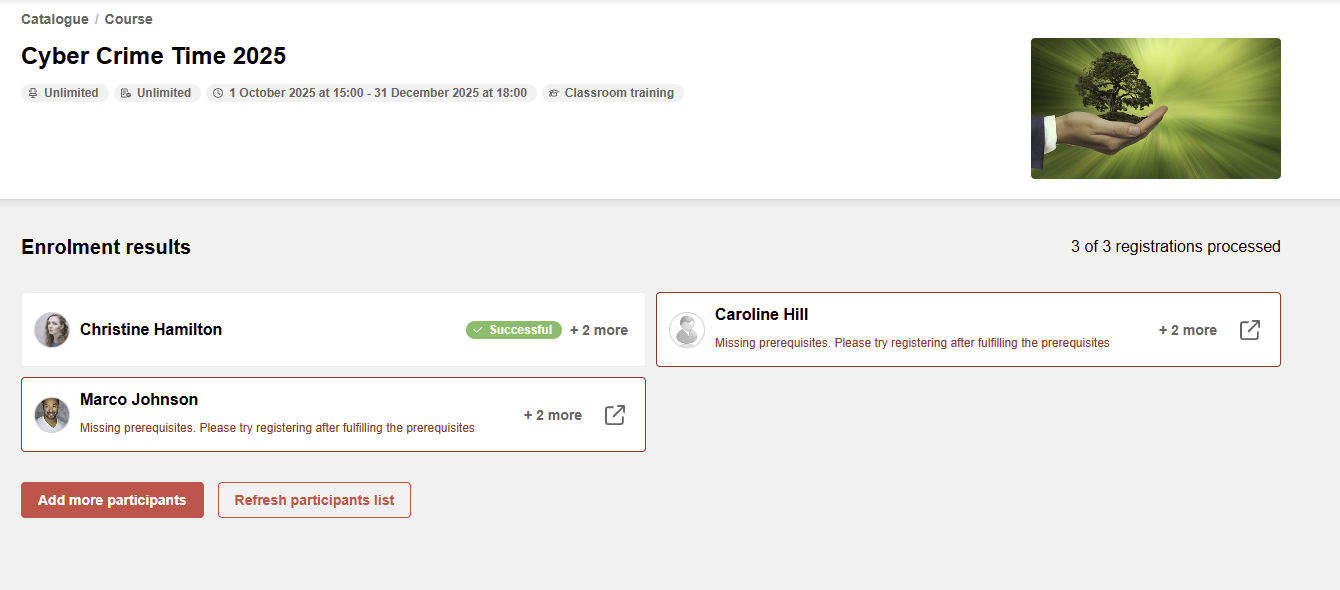
For the courses where Edit syllabus is enabled via the course meta tag, the option to Edit the syllabus after the enrollment will also be available.
Based on the "Course enrolemnt" authorization at the Default menu: My staff/ Staff pool, the option to select multiple users on the My staff page is enabled.
Further settings can be done in the client administration.
-
Show due date/identification dialogue while enrolment by supervisor
-
Due date as mandatory input
Move and replace by supervisor
Line managers / Dealergroups have the commitment to "send" a specific number of employees to trainings. This commitment (number of trainings/seats) is connected to their bonus. Therefore the fulfilment of this commitmentment is very important. To ensure, that they can fulfil their commitment, there is a need to to be able to e.g. replace employees or move employees from one session o another, if e.g. one of the employees is not able to participate in the training.
Access to the move and replace options
In order to replace a participant on a course with another participant or move a participant from a course to another, the line manager will access the list of employees via Default menu: My staff / Staff pool, select the concerned employee and navigate to the learning status of the employee.

In this view the course for which the change is needed can be selected and the two opions are revealed.

How replace enrolment works
When the Replace enrollment button is selected, the enrollment management workflow will open, with the context of the selected participant and the selected course.

Below the course information, a selection list is available for selecting the user to replace with. The list is composed based on the same rules that the My staff list is configured (supervisor relationship and edit right for the user). The users who are already enrolled in the selected course are displayed in the list, but are grayed out and can not be selected. Their current status is also visible. This list of users considers the user attributes defined for the Staff user list.

A single user can be selected from the list (the replace function is a one to one process). Once the user is selected, the user tile will be displayed, with the possibility to remove the selection and select another user. Also, once the selection has been made, the replace button will become active and the process can be continued.
Proceeding in the replacement process, if prereuisites are defined on the course and the new user does not fulfill the prerequisites or only partially fulfills them, the prerequisite overlay will be displayed. It will only be possible to proceed with replacing if the prerequisiets are at least partially fulfilled or the only unfulfilled prerequisites are not mandatory.


If the process can be continued, the replace process is triggered and, if the process is successful, a redirect to the learning status page of the initial user is performed, with a confirmation message that the replacement was successful.If the process fails, an error message is displayed on the same screen, without a redirect.
Move enrollment
When the Move enrollment process is started, the enrollment management workflow will open, with the context of the selected participant and the selected course. Here, instead of an option to select another user as done for replacement), an option to pick a target course for the move is available.

In this list, the following rules apply:
-
Courses from the same course template as the initial course
-
Courses where the selected user is already enrolled are displayed but not available for selection (grayed out)
-
The information displayed for the courses uses the same configuration defined for the course tiles displaye din the learning status of the learner.
-
A single target course can be selected.
-
The list can be searched by: course name, user defined course code, course id, subtitle, location

After selecting a course from the list, the selection list is replaced with the tile for the selected course. If the selected course is not correct, the selection can be removed via the X button and the selection list will be made available again.

The Move button is enabled as soon as a target course is selected and the move process can be triggered. If the target course has prerequisites, the prerequisite information is displayed if the learner does not fulfill them or only partially fulfills them.

Configuration
-
The move and replace options will be displayed in the following conditions:
-
The line manager has the navigation rights to access the learning area of the user
-
The line manager has the corresponding ACL available at the course level (either Replace enrollment or Move enrollment)
-
-
This list of users considers the user attributes defined for the Staff user list
Further notes and restrictions
-
Both the replace and the move process can be performed if the participant is in one of the following states:
-
User is either on the participant list" (Enrolled, Started, Reserved) or on the "Waiting list" (Waiting, Reserved for waiting list)
-
It will not be possible to move or replace a participant who already completed the course
-
-
It will not be possible to move a participant to a course with the planning status set to Cancelled.
-
When a participant is replaced or moved from a course, he is completely removed from that course and does not go through the cancellation process. Therefore there will be no cancellation fees applied.
-
The move functionality, both by the line manager in the front end and also by the admin in the backend can be restricted in case the course has tiem dependent cancellation fees defined that would apply at the moment when the move is attempted. Since the move function does not trigger cancellation fees, the move can be restricted in order to avoid bypassing these cancellation fees, and the user is advised to use the cancellation option instead. This restriction can be configured at the client level.
-
On the admin side, he/she can see the Available places when trying to move a participant to another course in the 'Moving enrolment to other course' function. The admin can add a new column in the list which is called "Places" and he can even filter by displaying only the available places or both available and not available places.
-
Enrollment forms must also be considered in the replace and move workflows. If the course has a defined enrollment form, after checking the prerequisites, the enrollment form will be opened, where the manager can fill out the enrollment data.
-
If a user is moved from a learning path to another one
-
user is deleted from learning path #1 and booked for learning path #2
-
user is deleted from all courses of learning path #1 and booked on courses of learning path #2
-